Table of contents
Open Table of contents
Article body
Some systems use POI to import and export spreadsheet-based reports. Today’s topic concerns one part of the import process.
My understanding of a POI import is as follows:
-
Parse the Excel file you receive.
-
Read it through an I/O stream, obtain an HSSFWorkbook, get the sheet, and determine the row and column counts.
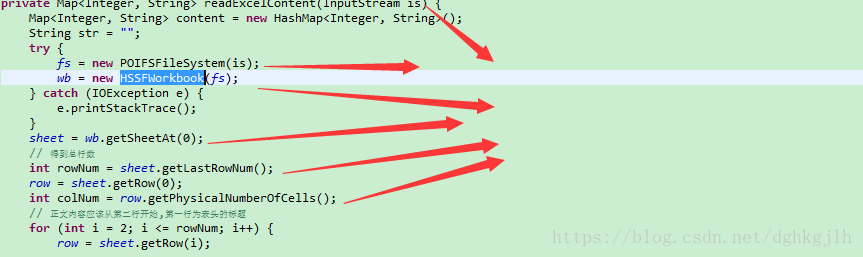
- Read the data. Once we know the number of rows and can access each row’s columns, we encounter the issue discussed here:
Some blank rows in Excel look identical to other blank rows, but POI treats them differently when parsing the file.

This happens because there are two ways to remove a row’s data in Excel: right-click and choose Delete, or select the row and press the Delete key. With the latter, POI sees an empty row that still exists; with the former, it treats the row as absent.
We therefore need to detect and exclude these empty rows in code. This can also help with large imports, and, more importantly, prevents null data from being inserted into the database.
Here is my solution:
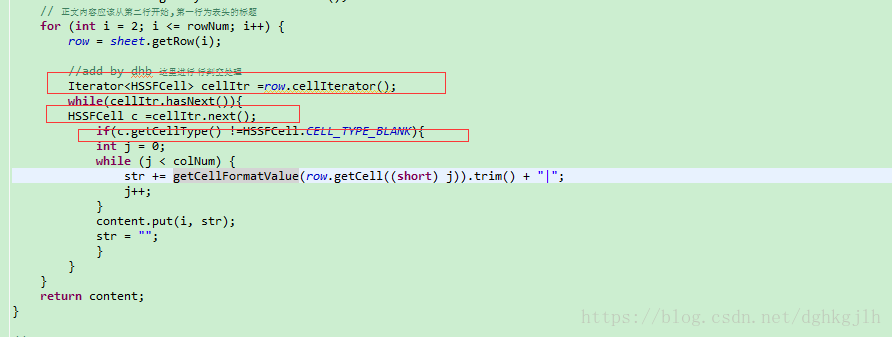
Use POI’s iterator and inspect each row and its cells, including empty rows. Check each cell’s getCellType result and whether it is empty. If a row exists but every cell is empty, treat it as an empty row and skip further processing.
- That is my approach. Of course, the right implementation depends on the situation. The solutions I found online generally take one of two forms:
The first, like mine, excludes empty rows while reading the data.
The second reads every available row and then validates the data before inserting it into the database, excluding empty rows at that stage.
In my view, these differ only in implementation; both remove the empty rows.
- After identifying rows with useful data, determine each cell’s data type and process it accordingly.
For reference, here are the CellType values:
CellType Type Value
CELL_TYPE_NUMERIC Numeric 0
CELL_TYPE_STRING String 1
CELL_TYPE_FORMULA Formula 2
CELL_TYPE_BLANK Blank 3
CELL_TYPE_BOOLEAN Boolean 4
CELL_TYPE_ERROR Error 5