Table of contents
Open Table of contents
Article body
I recently wanted to learn about Docker, so I downloaded it to try it out.
-
Download the version for your operating system from Docker’s official website. I am using a Mac. Remember to register before downloading.
-
After downloading it, open the terminal and run the three commands in the official guide to check that the Docker version is correct. The guide explains the commands in detail; see here
-
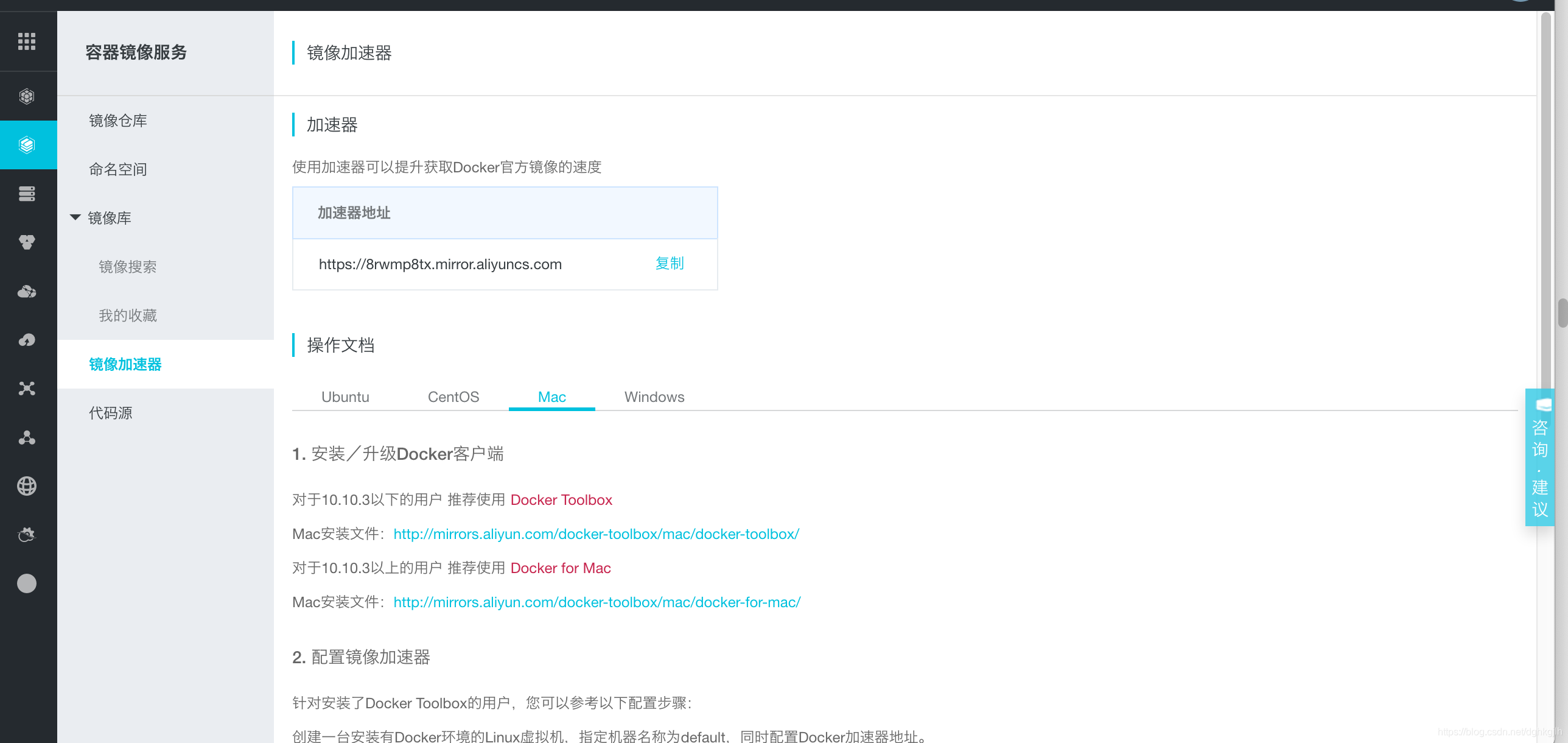
Configure a registry mirror for faster access from China. I use Alibaba Cloud for this. After signing in, find Container Registry and open the registry mirror section to see your mirror URL. Both Alibaba Cloud and Docker provide detailed configuration instructions, so I will leave the setup details to those documents. Here is a screenshot:
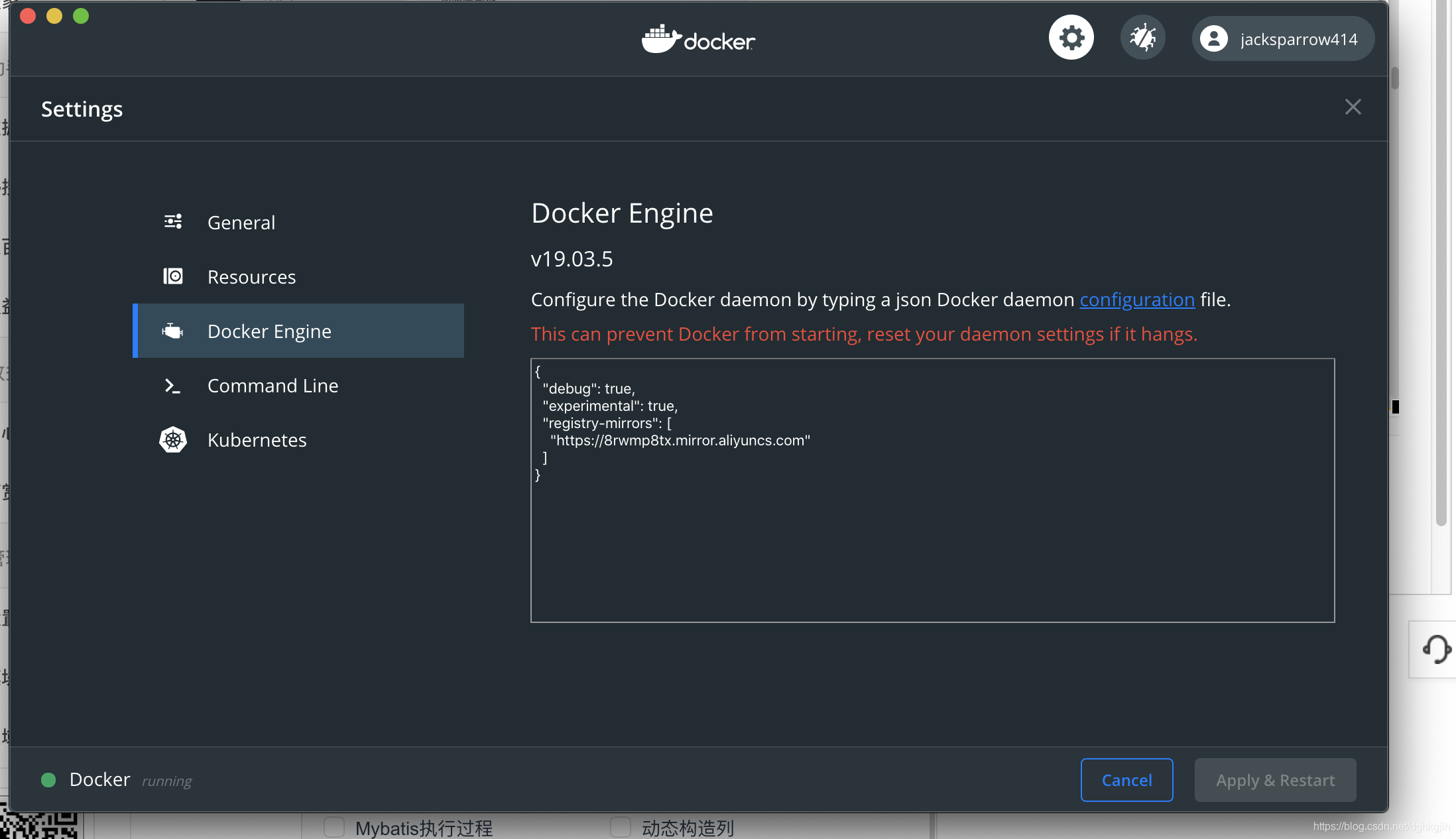
Note: a client upgrade may reset the configuration, so remember to check these settings.
That completes the initial Docker installation and configuration.
Update: 2018-12-28. After replacing the mirror URL in the Docker client, I saw a message underneath: no crts “YOUR_MIRROR_URL”. This means there is no certificate. In this case, changing https to http in the mirror URL resolved the problem.