Table of contents
Open Table of contents
Article body
When connecting to Oracle through PL/SQL, you may encounter errors beginning with TNS. If that happens, try the following steps:
- Open Command Prompt and run tnsping IP_ADDRESS to see the result.
Whether the connection test succeeds but reports another error, or fails altogether, you can try the next step.
- Under the Oracle installation directory, find \product\11.2\dbhome_1\NetWork\admian. This folder contains listener.ora and tnsnames.ora. Open them, find the HOST setting shown below, and change it to your computer’s full name.
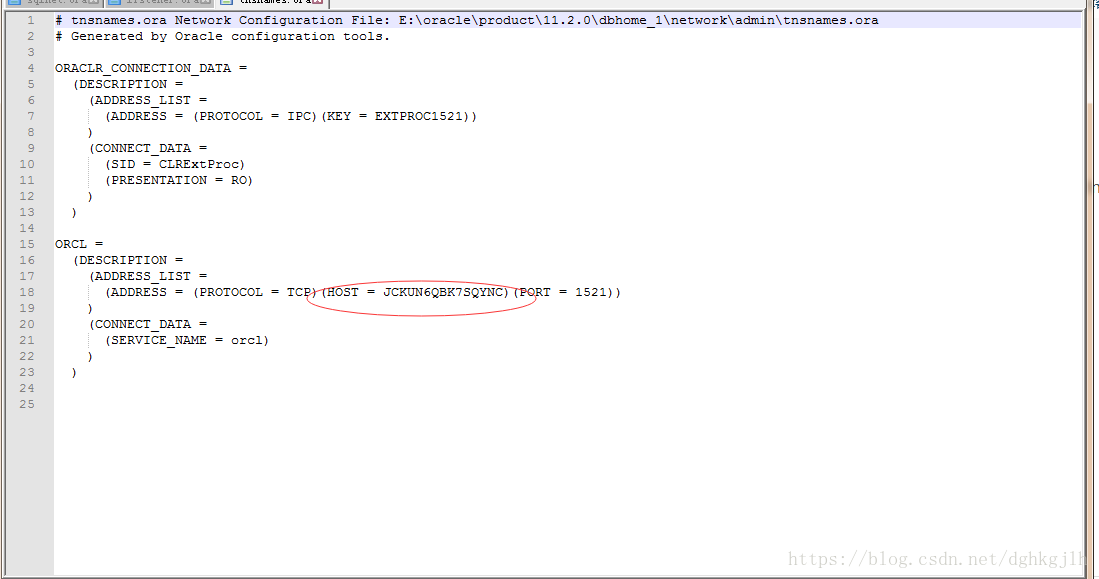
PS: To find the computer’s full name, right-click Computer on the desktop, then open Properties > Advanced system settings > Computer Name.
After making the changes, restart the Oracle listener through Windows Services. Alternatively, reconfigure the listener and then restart it. If you’re unfamiliar with listener configuration, there are plenty of walkthroughs online.
First, test login from Command Prompt with sqlplus USERNAME/PASSWORD@DATABASE as sysdba.
If login works from Command Prompt but not from PL/SQL, click Cancel to enter PL/SQL, then go to Tools > Preferences > Oracle > Connection. Select your Oracle installation under Oracle Home and save the setting. Try logging in again; PL/SQL should now connect too.
A quick record of a problem I ran into.