Table of contents
Open Table of contents
Why Use Docker?
When learning a technology, the most frustrating part at the beginning used to be installing software, setting environment variables, and so on. One incorrect step—or even correct steps followed by strange problems—would send us searching for answers, trying them, failing, and repeating the cycle. By the time the environment finally worked, our enthusiasm for learning was long gone.
That is why I strongly recommend Docker for learning different technologies. Pull the image, and the environment is ready to use immediately. When you finish, delete the container and clean it all up. Very convenient!
Write the docker-compose.yml File
Official PostgreSQL Docker Image
version: "3.7"
services:
  pgdb:
    # Set the container memory size limit
    shm_size: "1gb"
    image: postgres:latest
    # Set the container name
    container_name: pgdb
    # https://docs.docker.com/compose/compose-file/#restart
    restart: always
    # Map the port
    ports:
      - 5432:5432
    # Set the PostgreSQL server time zone; the default is GMT. Official documentation: https://www.postgresql.org/docs/14/app-postgres.html#id-1.9.5.14.6.3
    command: postgres -c timezone='US/Eastern'
    # https://docs.docker.com/compose/compose-file/#long-syntax-4
    volumes:
      - type: volume
        source: pgdb-data
        # All PostgreSQL configuration files are under /var/lib/postgresql/data
        target: /var/lib/postgresql
        read_only: false
    # Location of the environment variable file  https://docs.docker.com/compose/compose-file/#env_file
    env_file:
      - .env
# Declare the volume
volumes:
  pgdb-data:
For more options and explanations, see the Compose file documentation
Create the .env File
vim .envUse the following contents:
POSTGRES_PASSWORD=12345
POSTGRES_USER=postgres
POSTGRES_DB=postgres
PGDATA=/var/lib/postgresql/data
For additional variables, see the official PostgreSQL image documentation
Start the Container
docker-compose up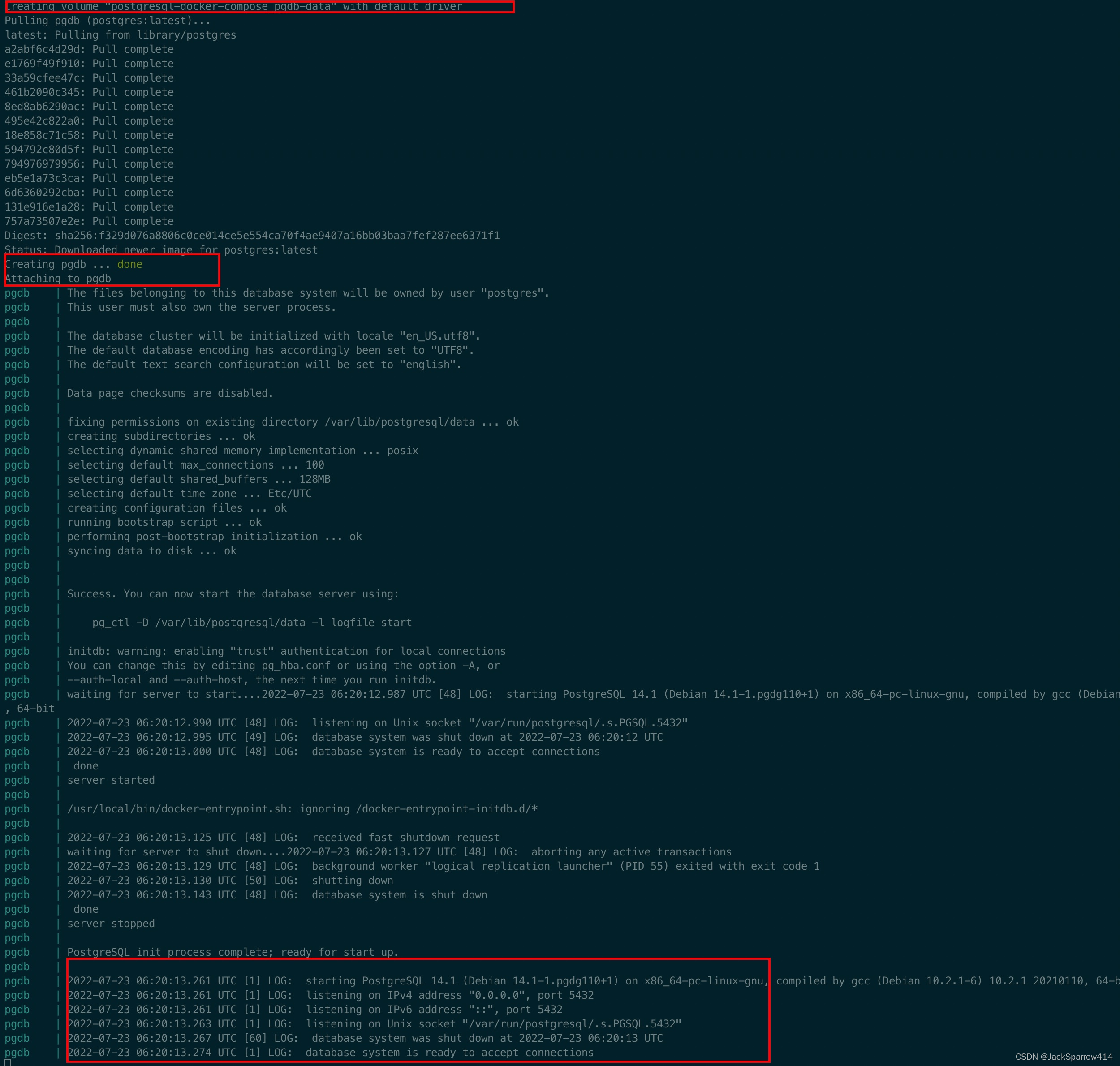 The output shows the volume being created, the container being created, and a successful startup.
Install pgAdmin Locally
Download the version for your operating system directly from the pgAdmin website.
On macOS, you can also install it directly with Homebrew.
brew search pgadmin
brew install pgadmin4
Connect to PostgreSQL in Docker with pgAdmin
- Open pgAdmin and choose Add New Server on the Dashboard.
- Set Host Name to localhost.
- Set the database to postgres.
- Set the username to postgres.
- Set the password to 12345.
These settings are defined in the .env file above.
Create a Table
Enter the Container
docker exec -it pgdb bashConnect to the PostgreSQL Server
psql -U postgresSelect the Database
postgresCreate a Table
CREATE TABLE my_first_table (first_colume text);List Tables
\dtInsert Data
INSERT INTO my_first_table (first_colume) VALUES ('hello PosgreSQL');You can also view this data in pgAdmin.
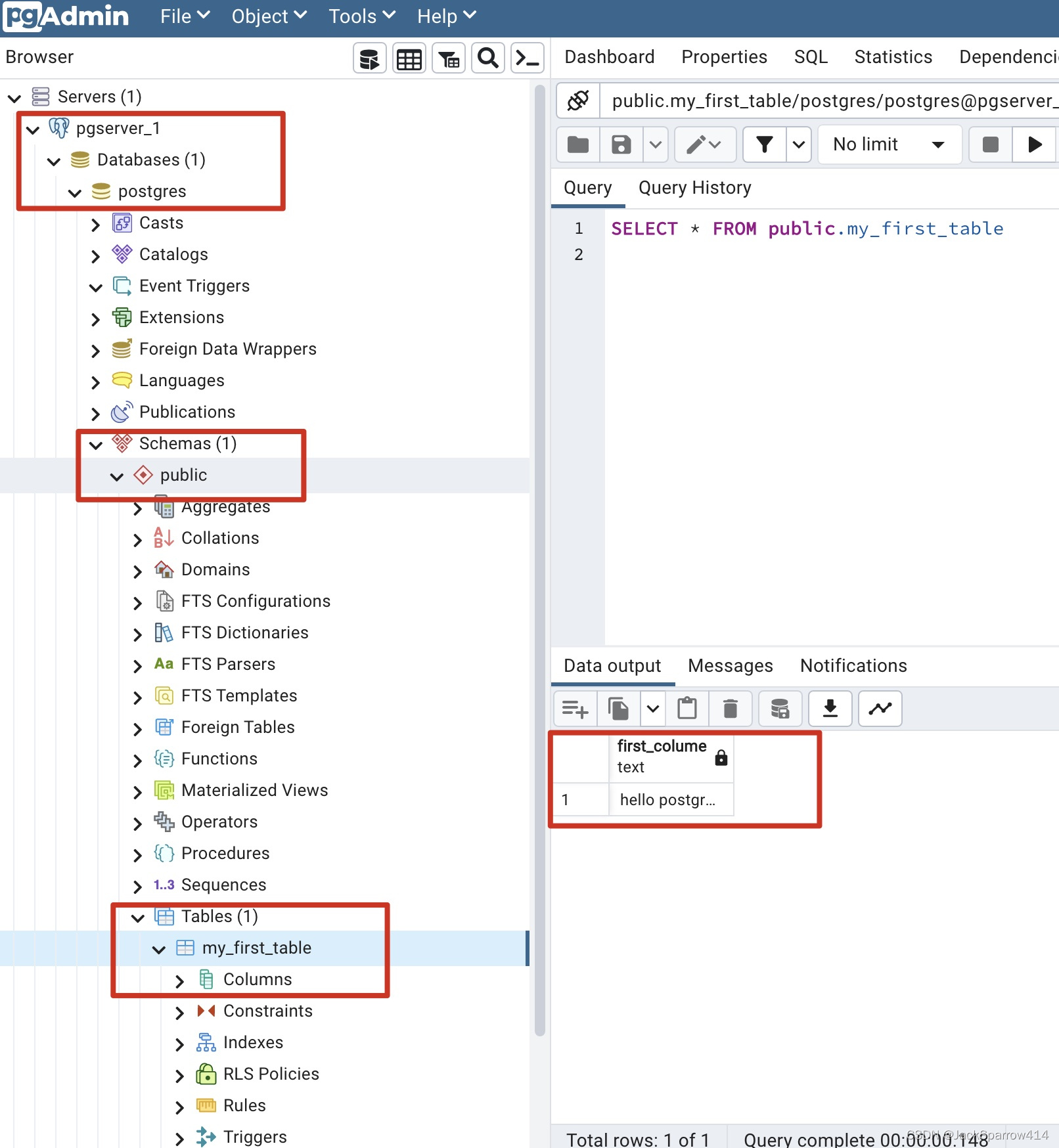
The PostgreSQL learning environment is now ready.
Other Resources
- Sample code
- Configuration file locations: for the default configuration directory in Docker, see the PGDATA section of the official image documentation. The default is /var/lib/postgresql/data.