Table of contents
Open Table of contents
Article body
- Find your local IP address: run ipconfig/all in Command Prompt to display the network configuration.
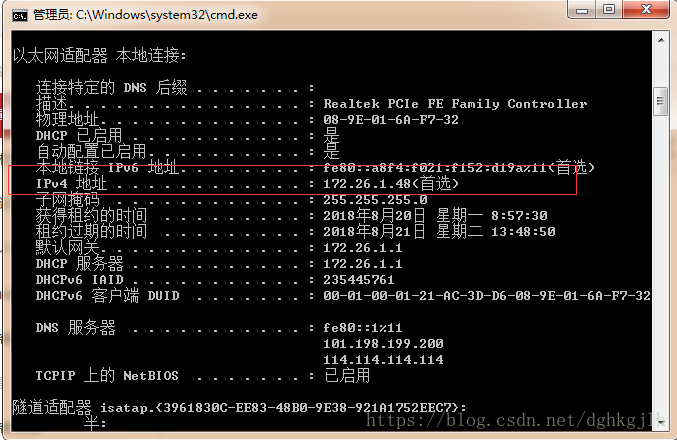
The IPv4 entry is your local IP address.
To let someone else access your local project, have them enter ip:8080 as the URL.
-
List all occupied ports: netstat -ano
-
When developing in MyEclipse or IntelliJ IDEA, Tomcat may sometimes report an insufficient-memory error, such as:
Exception in thread http-apr-8080-exec-
Regardless of the number that follows, this type of error is caused by Tomcat running out of memory. You can adjust the settings in your IDE.
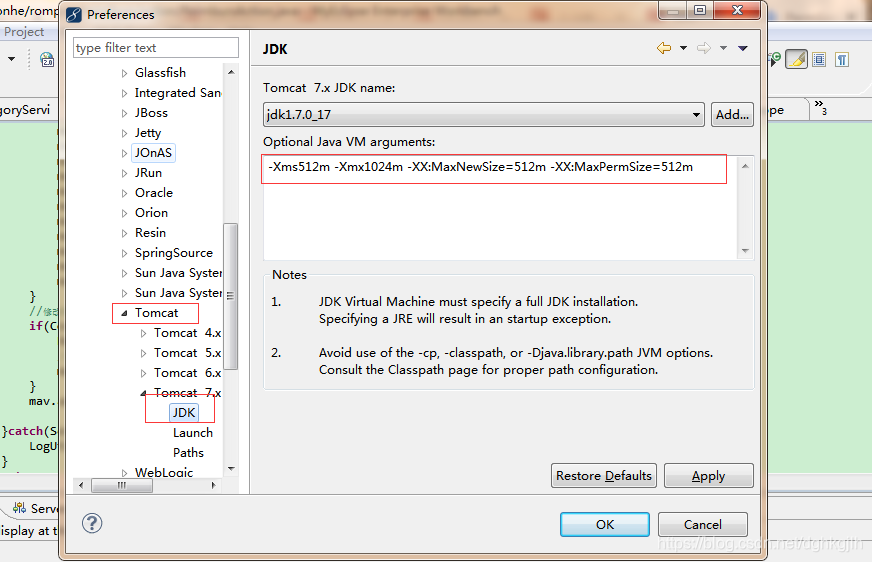
The MyEclipse settings are shown above.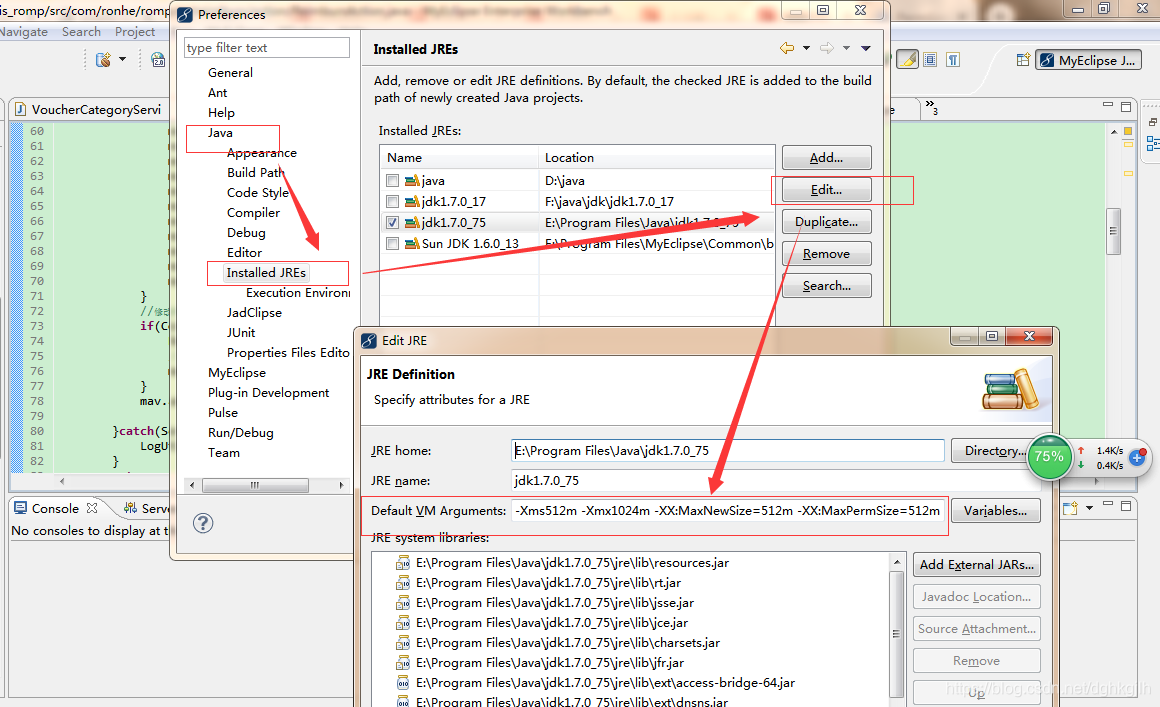
Adjust the settings here too. You can also edit the myeclipse.ini configuration file.
In IntelliJ IDEA, you can change the VM options through the configuration file. The steps are shown below.
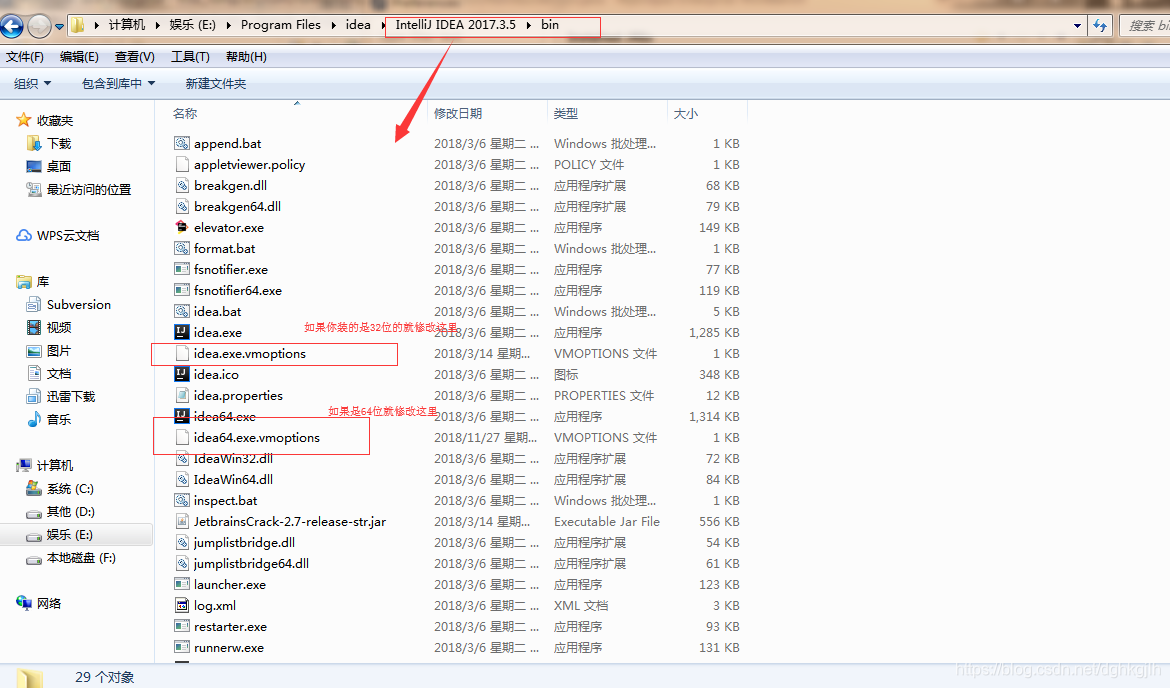
After opening it:
Change these two values as needed. Note that I have already modified them here; they are not the defaults.