Skip to content
JackSparrow414
Go back

Getting Started with Redis (Part 1): Basic Setup on Windows

Table of contents

Open Table of contents

Article body

  1. After installing Redis, open Command Prompt and enter redis-cli to connect to your local instance. Initially, no password is set. To set one, open redis.windows-service.conf in the Redis installation directory, search for requirepass, and follow the indicated format to enter the password you want. For example:
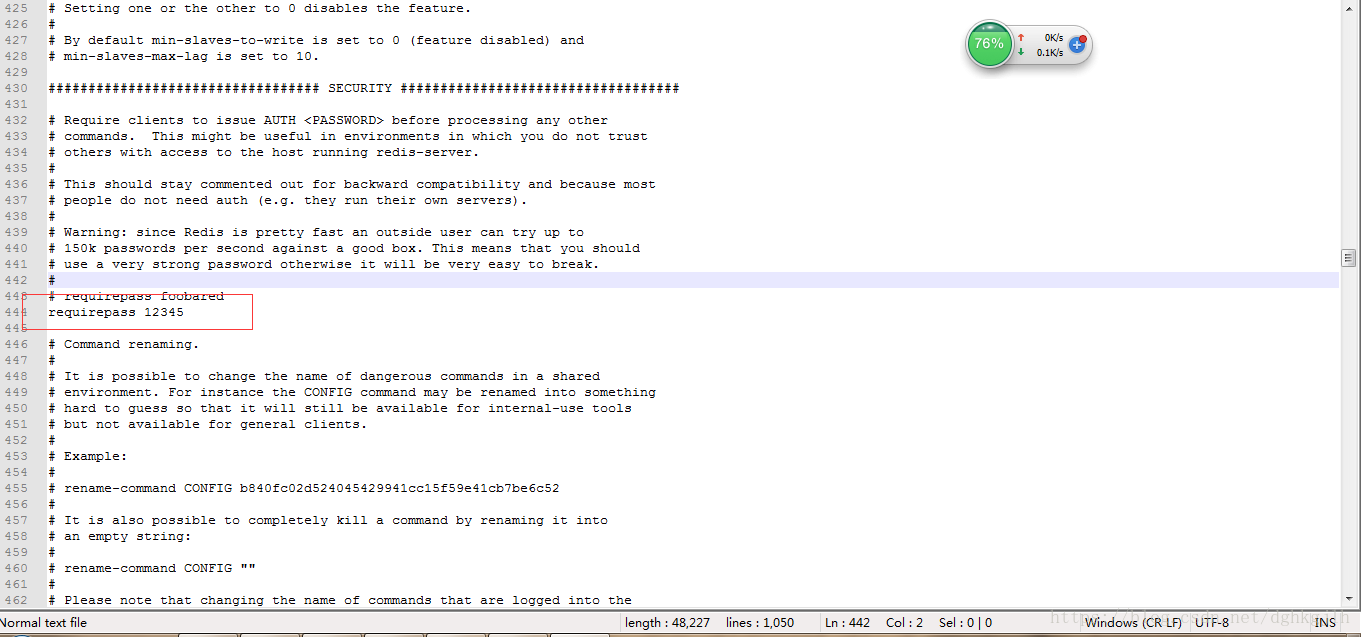
requirepass password setting in the Redis Windows configuration file

  1. Once a password is configured, you must authenticate before performing operations. Otherwise, Redis reports the error shown below.

redis-cli returning NOAUTH Authentication required for a command before authentication

Authenticate by entering auth PASSWORD.

  1. After connecting, use Redis’s SET command to write data. For example:
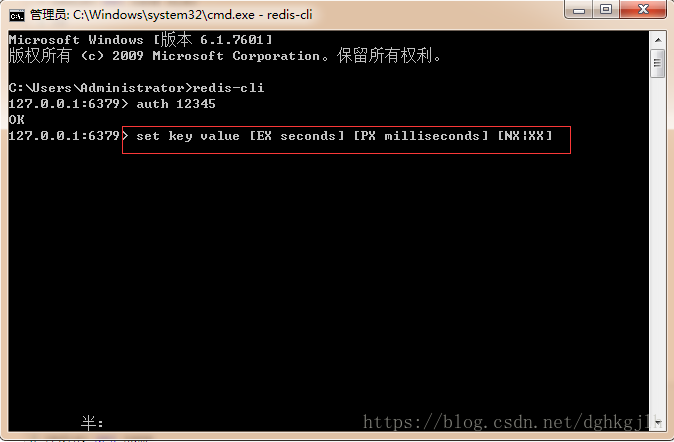
EX, PX, NX, and XX parameter hints for SET in redis-cli

The key and value are straightforward. EX and PX specify seconds and milliseconds, respectively, as the English description indicates. These options set the key’s expiration time.
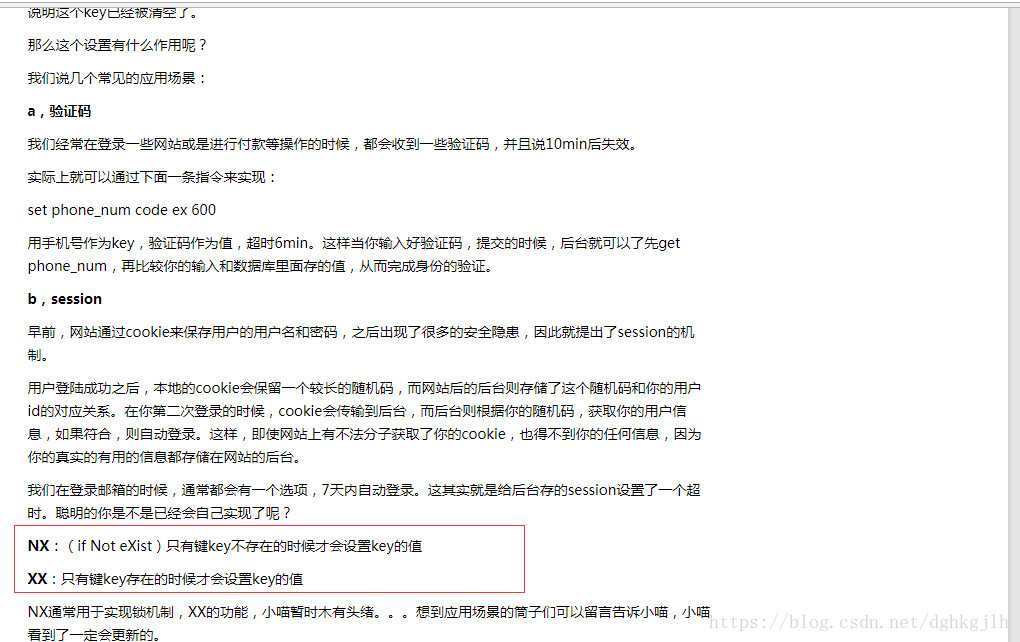
Expiration and NX and XX conditional options in Redis SET documentation


Share this post:

Continue this series

Getting Started with Redis

  1. Getting Started with Redis (Part 1): Basic Setup on WindowsYou are here
  2. Getting Started with Redis (Part 2): Basic Data Types and Commands
  3. Getting Started with Redis (Part 3): Primary/Replica Replication
  4. Getting Started with Redis (Part 4): Monitoring and Automatic Recovery with Sentinel

Comments

Questions, corrections, and experiences are welcome. Sign in with GitHub to comment; both language versions share this discussion.

Comments are available on the live site only.