Table of contents
Open Table of contents
Article body
Our company is switching entirely to MySQL, so some data from our existing SQL Server databases needs to be imported into MySQL.
I used Navicat’s Import Wizard.
-
Right-click the table and select Import Wizard.
-
Choose ODBC, then select SQL Server.
-
Enter the SQL Server IP address, username, and password. Enable saving the password and enter the source database name.
-
Test the connection. Once it succeeds, select the tables to import and complete the import.
Most problems occur in step 3. If the connection test says SQL Server denies access or does not exist, troubleshoot as follows:
-
Check whether the SQL Server host firewall is enabled. If so, temporarily disable it and re-enable it after importing the data.
-
If the firewall is already disabled, check whether SQL Server allows TCP/IP connections. This option is disabled by default. Open SQL Server Configuration Manager, find the network configuration, and enable it.
-
If those steps do not work, check whether SQL Server uses Windows authentication or SQL Server authentication.
-
Enable SQL Server authentication: in SQL Server Management Studio, right-click the server, open Properties, and select “SQL Server and Windows Authentication mode” under Security. Click OK.
-
In Properties, find General, set the username and password—you can use a simple password—and clear Enforce password policy.
-
Restart the SQL Server service.
Connecting should now generally work.
Some higher-end Navicat versions, such as Navicat 12 for Mac, show no SQL Server option under ODBC, only username and password. You can instead create a SQL Server connection in Navicat and use Data Transfer to complete the migration.
After migrating table structures and data, some work remained. Several JSON files had no destination tables, so I created tables and tried Navicat’s Import Wizard. It kept failing, and with time short I did not investigate. Instead, I imported them using the official MySQL Workbench tool.
The data and import screens are shown below:
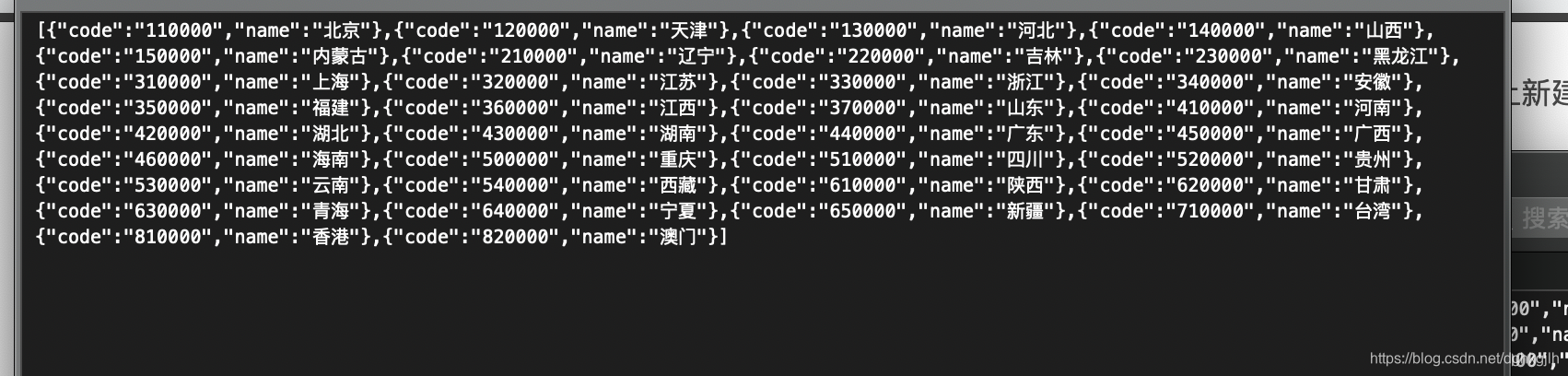
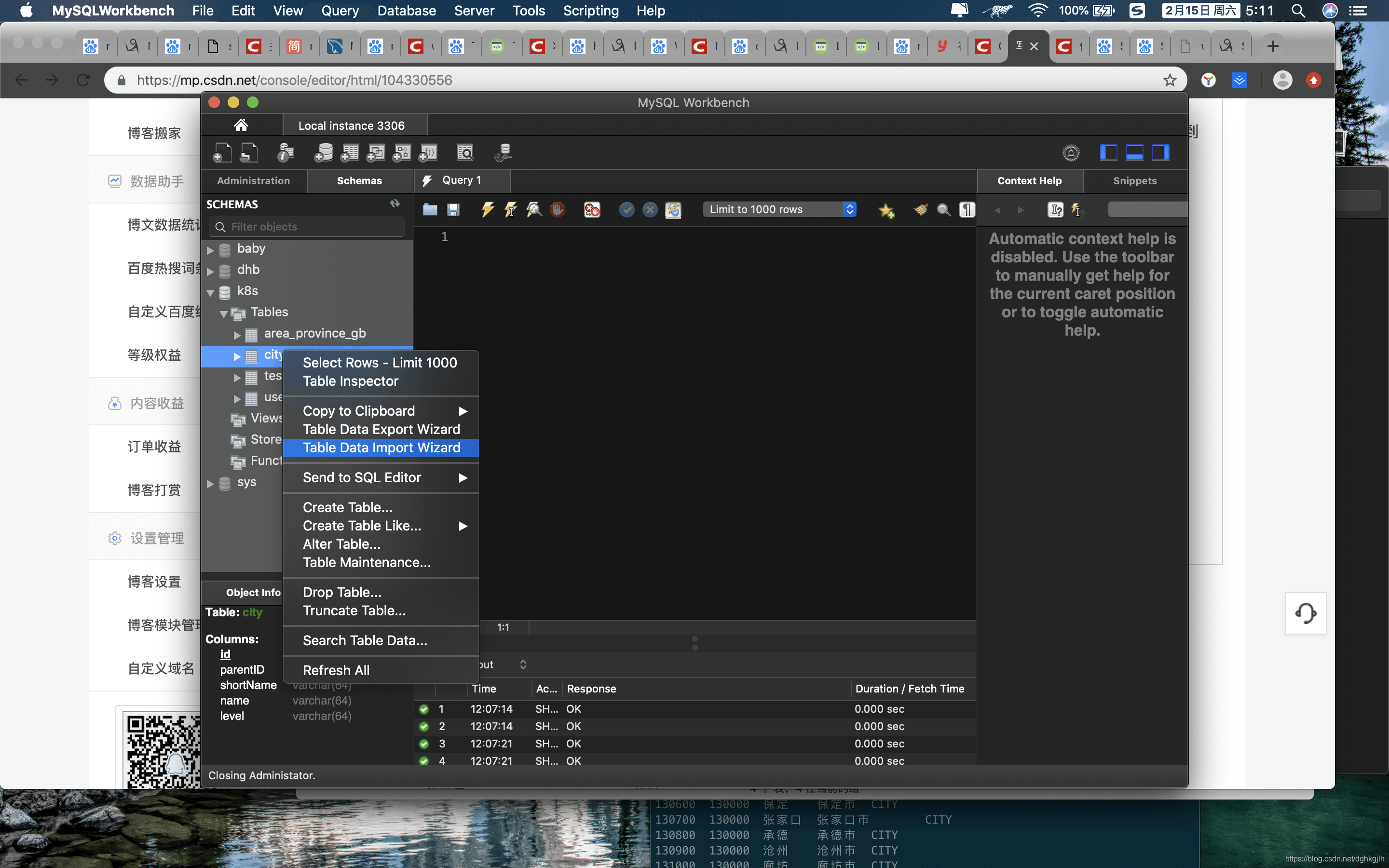
Follow the wizard step by step. After import, created and updated were empty. Their type was datetime rather than timestamp, so I could not set them to the current timestamp during insertion. I wrote a trigger to set both fields before each insert:
CREATE TRIGGER YOUR_TRIGGER_NAME BEFORE INSERT ON area_province_gb FOR EACH ROW
BEGIN
SET new.created = NOW();
SET new.updated = NOW();
END;
Importing again produced the expected data.
I then wanted to explore MySQL import and export in more depth.
Export: MySQL supports select * from tablename into outfile ‘/OUTPUT_FILE_PATH’ fields terminated by ”,”; for example:
select * from city into outfile '/usr/local/mysql8/city.txt' fields terminated by ",";This exports the city table to city.txt, separating fields with commas. Tabs are the default delimiter.
When exporting, if you get this error:
--secure-file-priv option so it cannot executefirst run:
SHOW VARIABLES LIKE '%secure%'Check whether secure_file_priv is NULL. If not, use the returned directory as the export path. If it is NULL, configure your desired directory under mysqld in my.cnf. The mysql user/group must have permission on that directory—remember this—or you will still get:
errno 13 - Permission deniedYou can also set secure_file_priv= to allow any directory, provided the mysql user/group has write permission there. Otherwise the same error occurs.
Restart MySQL after changing the configuration.
I encountered a minor detour during this process:
The system said my.cnf was read-only, so I made it readable and writable by everyone. That still did not work because its parent directory was read-only, so I made that directory readable and writable by everyone too.
On restart, however, I got:
World-writable config file ‘/etc/my.cnf’ is ignoredI later found that this was a MySQL policy: making its configuration directory/files writable by everyone causes this error and can prevent startup or shutdown. I restored all the permissions I had changed, restarted, and exported to a directory writable by the mysql user/group.
Import:
load data infile ‘FILE_PATH’ into table tablename fields terminated by ’,’; for example:
load data infile '/usr/local/mysql8/city.txt' into table city fields terminated by ',';This imports city.txt into the city table.
Importing over a hundred thousand records took less than a second—very fast.
Notes:
- When importing a local file into MySQL on a server, add LOCAL.
The command becomes:
load data LOCAL infile '/usr/local/mysql8/city.txt' into table city fields terminated by ',';- If the imported data contains strings and numbers but only strings are enclosed in "", add [FIELDS/COLUMS] optionally enclosed by ‘YOUR_DELIMITER’.
The command becomes:
load data LOCAL infile '/usr/local/mysql8/city.txt' into table city fields terminated by ',',optionally enclosed by '"';Since fields is already present, there is no need to repeat it before optionally.
- If the database already contains rows with matching primary keys or unique indexes, MySQL skips those duplicate rows by default (the IGNORE behavior). To replace existing rows with the imported data, use REPLACE.
The command becomes:
load data LOCAL infile REPLACE '/usr/local/mysql8/city.txt' into table city fields terminated by ',',optionally enclosed by '"';- To import only certain columns or set default values for columns during import, specify these at the very end of the command.
The command becomes:
load data LOCAL infile REPLACE '/usr/local/mysql8/city.txt' into table city fields terminated by ',',optionally enclosed by '"' (name,age,gender,created) set created = now();- Specify the separator between records with LINES terminated by ”.
The command becomes:
load data LOCAL infile REPLACE '/usr/local/mysql8/city.txt' into table city fields terminated by ',',optionally enclosed by '"', Lines terminated by '\r' (name,age,gender,created) set created = now();Putting these together:
Import a local file into a server’s MySQL instance,
replace duplicate data with the imported values,
separate records with a newline,
separate fields with commas,
enclose strings in double quotes,
import only name, age, and genter, and set created to the current time.
That covers basic MySQL import and export. Many additional options are available; see the official documentation if interested.
MySQL also provides mysqldump and mysqlimport, which serve similar purposes. You can look into those as well.