Table of contents
Open Table of contents
Article body
In everyday development, I usually use IntelliJ IDEA for Git pull, stash, commit, push, revert, and similar operations.
git add . stages all unstaged files. You can also use git add file, with a specific file path, to stage one file.
You can also enter interactive mode with git add -i, as shown below:

For more about interactive operations, see the official Git documentation
git restore . restores all unstaged files to their original state. You can also use git restore file, with a specific file path, for a single file:
For example:
git restore src/test/java/com/example/mybatis/demomybatis/MybatisTests.javaYou can also enter interactive mode with git restore -i.
You can also merge a develpop branch into master as follows:
-
Make sure all changes on develop have been committed.
-
Switch to master and pull.
-
In the Git area at the bottom right of IDEA, find and click develop, then choose merger into current to merge it.
-
Resolve any conflicts.
The Problem:
Today I merged branch 1, which I will call dev1, into branch 2, dev2. Because I used IDEA, it generated a merge message and committed automatically. I then found changes from colleagues on dev2 that caused errors in some code merged from dev1. After fixing them, I committed again. Before pushing, I needed to combine these into one commit.
Why Combine Them into One Commit?
Reason: our company uses Gerrit for builds and automated code checks. Pushing twice would fail because the initial commit generated by IDEA contained errors and would not pass Gerrit’s checks.
Approach One:
Use git rebase -i.
Here is a simulated example:
First commit
git commit -m "test1 commit"Second commit:
git commit -m "test2 commit"View the Git commit history:
git logAs shown below:
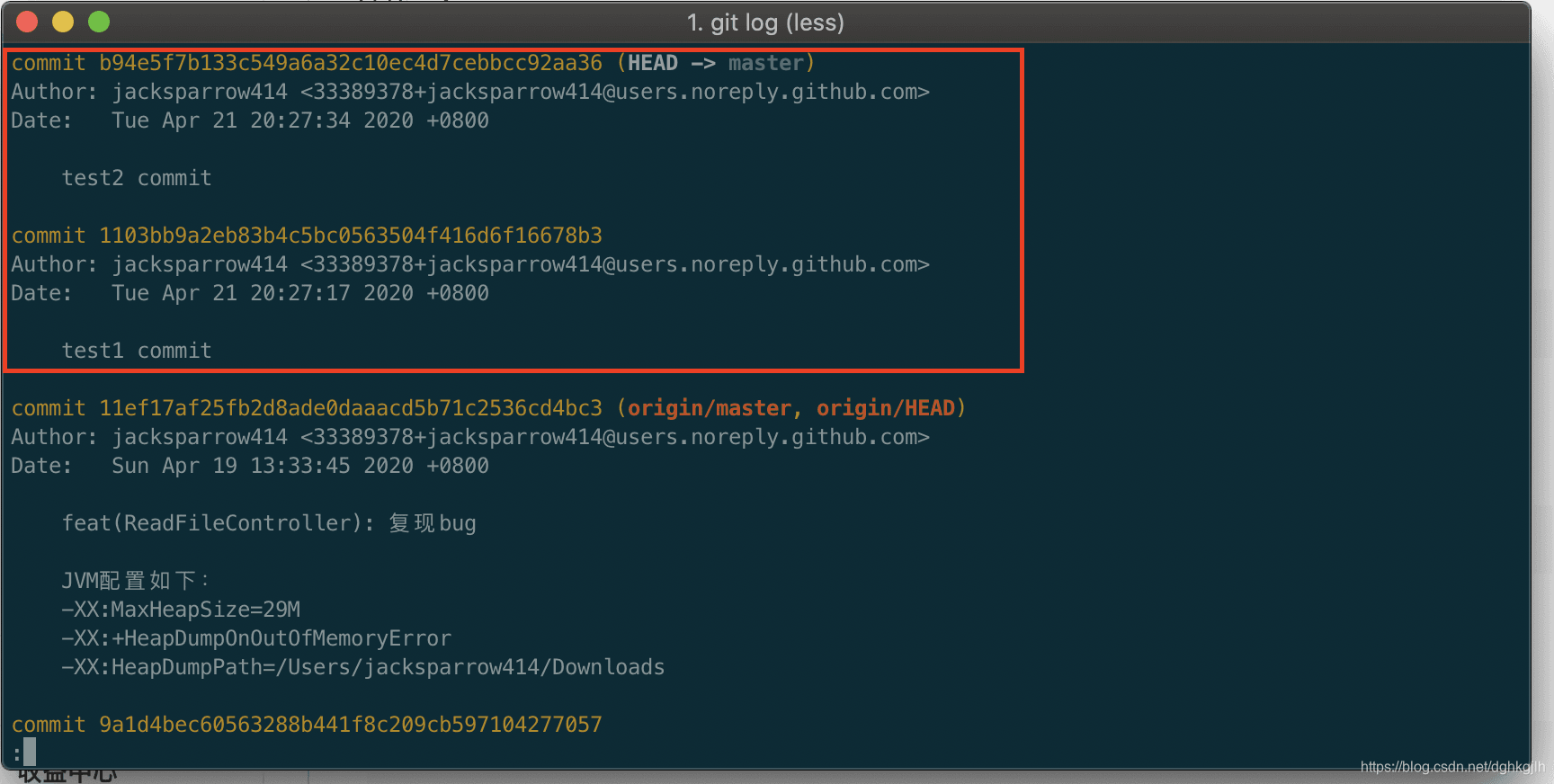
Our goal is to combine these two commits into one.
- Choose the common parent of the commits to combine—in this case, commit 11ef17…—and run:
git rebase -i 11ef17A Vim editor opens, as shown below. Press i to enter insert mode.
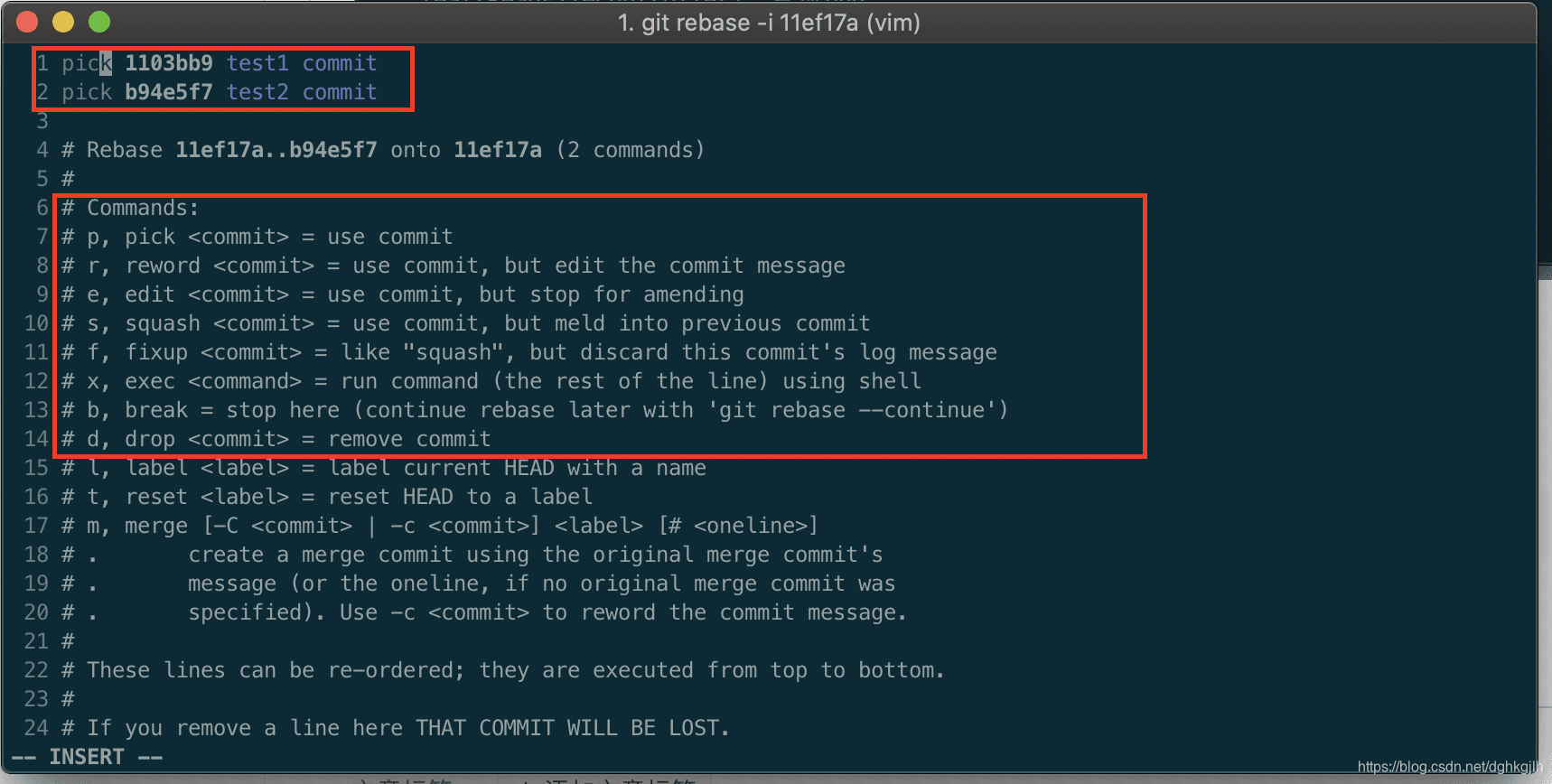
p, pick: use this commit
r, reword: use this commit, but edit its commit message
e, edit: use this commit, but stop at this commit
s, squash: combine this commit with the [previous] commit
f, fixup: combine this commit with the previous commit, discarding this commit’s message
x, exec: execute a shell command
d, drop: discard this commit
Edit it as follows:
p 1103bb9 test1 commit

s b94e5f7 test2 commit
After editing, save and exit with :wq. The commit-message editor then opens.
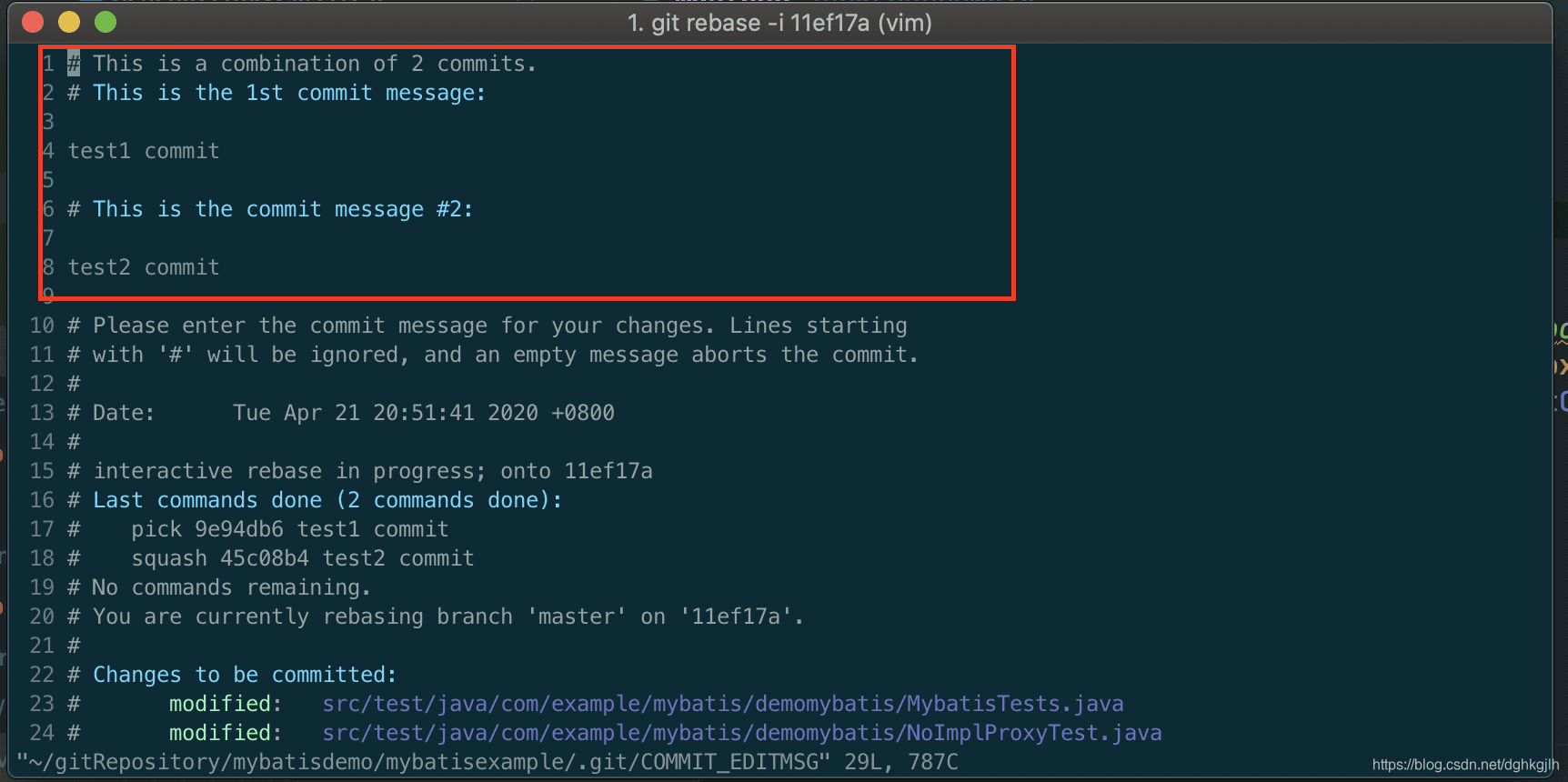
Here you can edit the commit message. Press i to enter insert mode. To use the first message, comment out test2 commit with #. If you want neither message, comment out both and add your own message below #This is a combination of 2 commits.
When finished, press Esc to leave insert mode -> :wq to save and exit -> git log to confirm that the two commits have become one.
Tip: if anything goes wrong during rebase, use git rebase —abort to leave rebase mode.
P.S. You cannot use s for the first commit. It combines the current commit with the previous one, but the first entry has no previous entry. Doing so is highlighted as an error.
Approach Two:
Use git commit —amend.
After the first commit, make the second set of file changes. Note: stage them with add without running git commit. Reuse the first commit message and combine the changes into one commit.
git commit --amendThis is effectively equivalent to f, fixup, in the interactive mode of the first approach: combine this commit with the previous one without retaining its message.
p 1103bb9 test1 commit

f b94e5f7 test2 commit
Approach Three:
Use git reset (commitid) to restore local Git history to the parent of the two commits.
Because git reset has no additional option, it removes the changes from the staging area. Next, use git add . to stage all those files again, then make a single combined git commit.
Tip: git reset —soft (commitid) keeps the files staged.
I recommend git commit —amend or git rebase -i.