Table of contents
Open Table of contents
- Git Basics and Contributing Pull Requests to Open-Source Projects
- Goals
- Basic Git Operations
- Cloning, Creating a Branch, and Committing
- How Do I Remove a File from the Staging Area?
- What If a Commit Misses a File, Has the Wrong Message, or Fails Code Review?
- Several Ways to Push to GitHub
- Pulling Remote Branches
- Applying One Commit from develop to master
- Moving HEAD Back Several Steps
- Reverting a Problematic Commit Already Pushed Remotely
- If a Local user.name Change Has Not Taken Effect, Use:
- Other Git Settings and Common Problems
- Common GitHub Operations
- GitHub Usage Guide
- Closing Thoughts
- Notes
Git Basics and Contributing Pull Requests to Open-Source Projects
Goals
- Quickly keep a fork synchronized with its source repository.
- Conveniently push changes to the fork and submit a PR to the original repository.
- Switch quickly between Gitee and GitHub.
- Learn the standard open-source contribution workflow.
Basic Git Operations
Cloning, Creating a Branch, and Committing
- Fork a project on GitHub.
- Clone it locally.
git clone git@github.com:jacksparrow414/hello-world.git- Create a branch named develop. checkout -b both creates and switches to it.
git checkout -b develop- Modify code on develop.
- Stage the changes.
git add .- Commit to the local repository. -a means all and commits the tracked changes; -m supplies a short commit message.
git commit -a -m 'add message'How Do I Remove a File from the Staging Area?
Use the following command:
git reset HEAD FILE_NAMEOr:
git rm --cached FILE_NAMEWhat If a Commit Misses a File, Has the Wrong Message, or Fails Code Review?
# Change the previous commit message
git commit --amend -m 'modify message'
To change a committed author, use:
git rebase -i COMMIT_BEFORE_TARGET
# In the interactive editor, choose edit for the target commit; save with :wq
git commit --amend --author="username jack@email.com"
git rebase --continue
# Force-update the remote branch after editing
git push --force origin
For multiple commits, repeat the three steps, or use git-filter-repo for batch changes.
By default, git rebase does not edit the root (first) commit. To include it:
git rebase -i --root# Add a forgotten file, such as test.txt, after git add test.txt
git commit --amend test.txt
# Vim opens. Edit the message if needed, then save and quit with :wq
# To retain the previous message, use:
git commit --amend --no-edit test.txt
# git log now shows the amended result as one commit
# If code review failed but the change is not abandoned, modify the file and use either form above, then:
git pushSeveral Ways to Push to GitHub
-
First form: push local develop to the same-named remote branch, creating it if absent.
Format: git push origin REMOTE_BRANCH_NAME
git push origin developgit push origin develop:Those two commands are equivalent to:
git push origin develop:refs/heads/developNote: this form lets you push commits from master while checked out on develop.
For example:
git push origin master
Although I strongly discourage doing this, it is useful to know.
-
Second form: push the branch currently at HEAD. Without an explicit remote branch, it uses the current name, creating the branch if absent.
Format: git push origin HEAD:refs/heads/REMOTE_BRANCH_NAME
origin is the remote repository alias, normally the default when there is only one. Replace it with another alias when pushing elsewhere.
Use:
git remote -vto inspect the configured remotes.
Note: HEAD identifies the current local branch. To push master’s commits while on develop, switch to master so HEAD points there, or use the first form.
git push origin HEAD:refs/heads/developgit push origin HEADFor Gerrit code review, do not push directly to the branch; use:
git push origin HEAD:refs/for/develop -
Third approach
Without a branch name, push the current branch to its remote counterpart, creating it if absent.
On the first push, configure the upstream; otherwise the simpler commands below report an error.
git push --set-upstream origin developOn later pushes, simply use:
git pushgit push originBoth forms have the same effect.
-
Recommendation: use the third approach for everyday work; it is simpler.
Pulling Remote Branches
-
Pull the remote branch corresponding to the local branch from origin. If several remotes exist, replace origin with the desired remote.
git pullgit pull origin -
Pull remote develop and merge it into the current branch.
git pull origin developPull master from another remote, upstream, and merge it into the current branch.
git pull upstream masterNote: origin is the default remote alias. Several remotes may be configured. Use:
git remote -vto inspect them.
Applying One Commit from develop to master
Switch to master.
git checkout masterView recent Git operation history:
git reflogFind a commit on develop.
# commitId is the develop commit found in git reflog
git cherry-pick commitID
To cherry-pick several commits, specify a range:# Range (A,B]: excludes A, includes B
git cherry-pick commitIdA..commitIdBThis applies commits between commitIdA and commitIdB to the current branch.
# Range [A,B]: includes both A and B
git cherry-pick commitIdA^..commitIdB
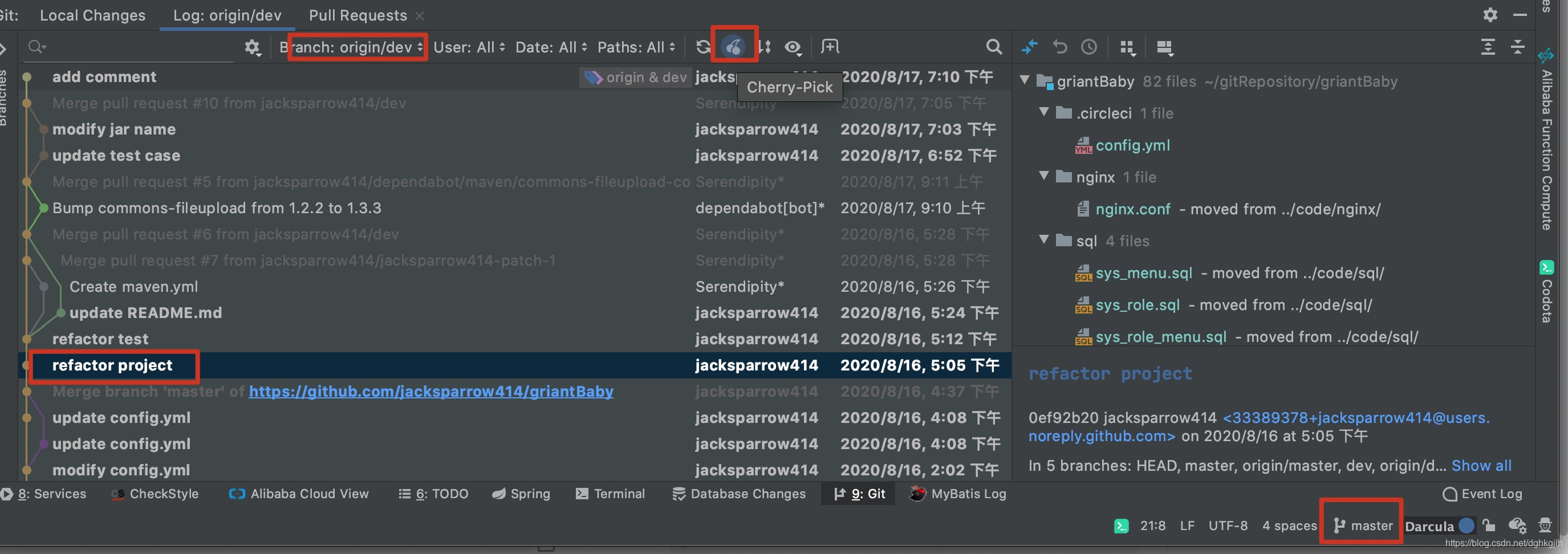
In IDEA, open Git, select commits on the desired branch, and right-click Cherry-Pick. For example, apply one or more dev commits to the current master branch.
Moving HEAD Back Several Steps
-
Retain the local changes.
# HEAD~N means N steps back; N is a number git reset --soft HEAD~2 -
Discard the local changes.
git reset --hard HEAD~2
Reverting a Problematic Commit Already Pushed Remotely
git revert creates a new commit recording the reversal of an earlier commit.
 # commitId identifies the commit to reverse
 git revert commitId

 git push
If a Local user.name Change Has Not Taken Effect, Use:
git commit --amend --reset-authorOther Git Settings and Common Problems
warning Delete `CR` prettier/prettier
This usually occurs in frontend projects with ESLint. On Windows, cloning may automatically convert LF (line feed) line endings to CRLF (carriage return plus line feed), leaving local files with CRLF.
Disable automatic conversion:
git config --global core.autocrlf falseFix the files:
yarn run lint --fixThe project can then build and start normally.
Restoring a Branch Deleted Both Locally and Remotely
Use reflog, which records reference changes. Think of it loosely as a database undo log. The default retention is 90 days.
How can we locate the deleted branch?
git reflog --date=iso-local | grep "dev-11788\|11788" | sortFind reflog entries whose branch or commit message contains dev-11788 or 11788, display timestamps, and sort the grep results.
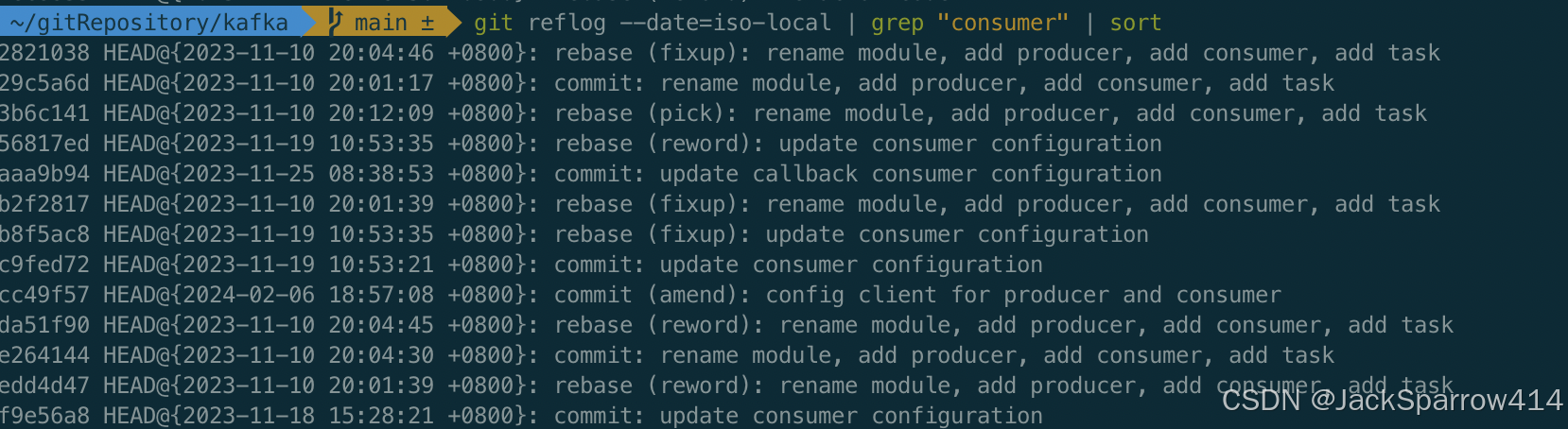 See git log for —date formats.
Find the commit hash at the point to restore.
git checkout commit-hash -b 11788-restoreCommon GitHub Operations
Questions
What If Cloning from GitHub Is Slow or Frequently Fails?
After forking a large project, slow GitHub access—such as from mainland China—may prevent a successful clone.
You can synchronize it to Gitee, then run:
git clone GITEE_REPOSITORY_URLAfter cloning, add your GitHub fork as another remote.
Format: git remote add CUSTOM_NAME REMOTE_REPOSITORY_URL
Find the URL by selecting Clone and HTTPS in your GitHub repository and copying it.
git remote add person_repo https://github.com/xxxxorigin now points to Gitee. If you only used Gitee for a faster download but want origin to point to your GitHub fork, use:
git remote set-url origin https://github.com/xxxxThis sets origin to your fork on GitHub rather than Gitee.
Afterward, remove the duplicate remote person_repo added earlier.
git remote remove person_repoInspect the upstream branches associated with local branches:
git branch -vvHow Do I Keep Synchronized with the Official Repository?
-
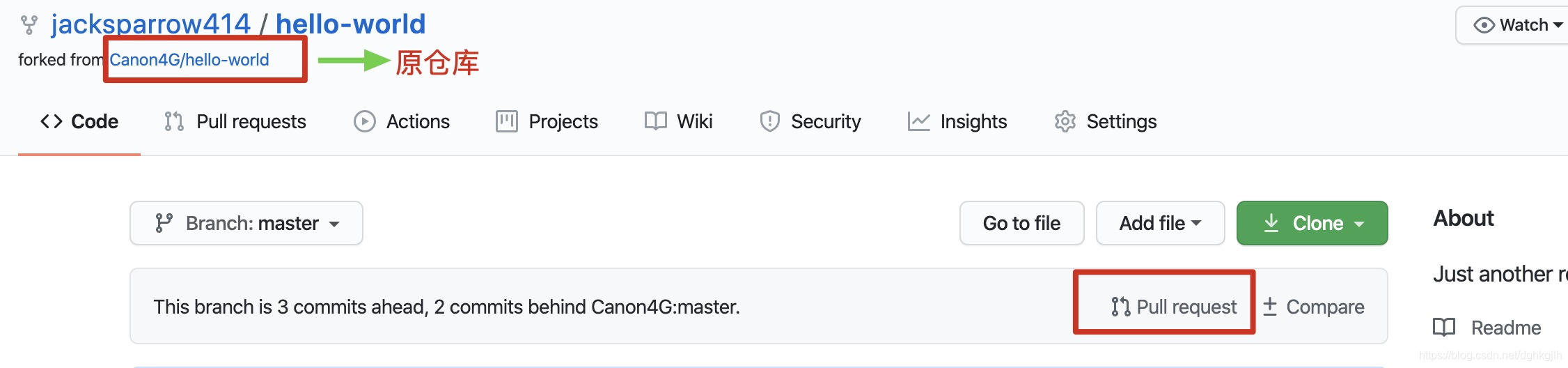
First approach: use the GitHub fork page, as shown.
-
Click Pull request on your fork.
-
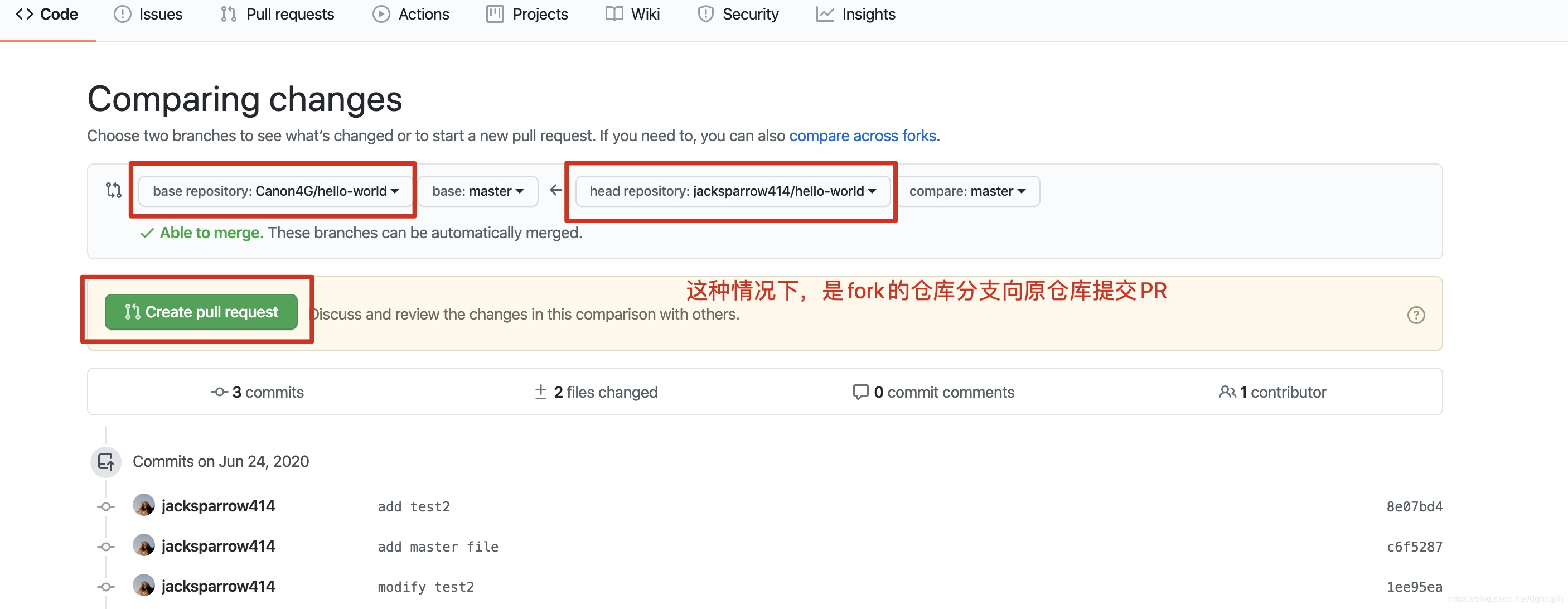
To submit your changes to the original repository:
-
To synchronize the original repository into your fork:
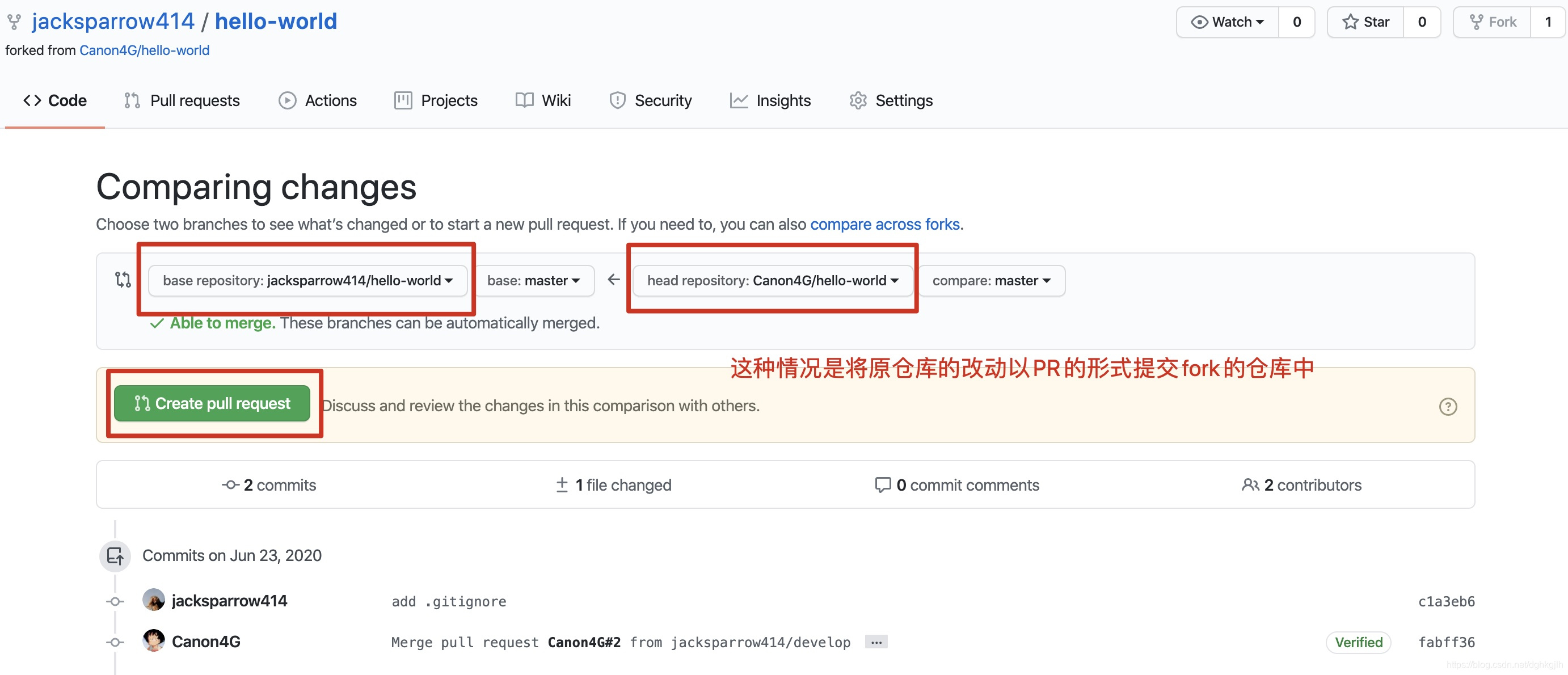 submit a PR to the fork and merge it to synchronize.
2021 update: GitHub now provides a Fetch upstream button on forks for convenient synchronization.
submit a PR to the fork and merge it to synchronize.
2021 update: GitHub now provides a Fetch upstream button on forks for convenient synchronization.
-
-
Second approach: use the command line.
-
Add another remote pointing to the official repository.
git remote add upstream UPSTREAM_REPOSITORY_URL -
I recommend creating a fresh branch for each issue or feature. Create and switch to issue#4673 locally, based on the official master branch:
git checkout -b issue#4673 upstream/master# As discussed for git push, setting upstream simplifies other commands git branch --set-upstream-to=upstream/masterAfter making changes, pull before committing to check for conflicts.
git pullIt pulls from upstream by default because of the setting above. Tip: git pull from the official repository may open Vim with a default “merge branch master of…” message. A subsequent PR then includes that untidy merge history. Solution:
git pull --rebase=true
# Or:
git pull --rebase
Alternatively, accept the Vim message without edits and save with :wq. This creates parallel history lines; then run:
git rebaseThe history becomes linear.
Commit local changes and push to your fork; origin is the fork’s remote alias.
git push -f origin issue#4673Find the pushed branch on your fork’s GitHub page and submit a PR upstream, following the submission steps shown earlier. Why use -f here? It forces the remote branch to match local code. When creating the issue branch and before committing, we synchronized it with official master, so the push makes the remote issue branch match that local state. Also note: after pulling official master, local master is ahead of origin/master. In the situation described here, git push without -f reports ! [rejected] master -> master (non-fast-forward). For normal company teamwork, however, I recommend avoiding -f where possible.
After upstream merges the PR, switch to master associated with origin and synchronize with the original repository.
# Without specifying a remote, origin is the default; git checkout upstream/master checks out upstream’s remote-tracking master
git checkout master

# Pull upstream/master and merge into the current branch
git pull upstream master
Local code now matches the original repository.
Delete the local issue#4673 bug-fix branch.
git branch -d issue#4673Delete the corresponding remote branch.
git push origin --delete issue#4673
-
GitHub Usage Guide
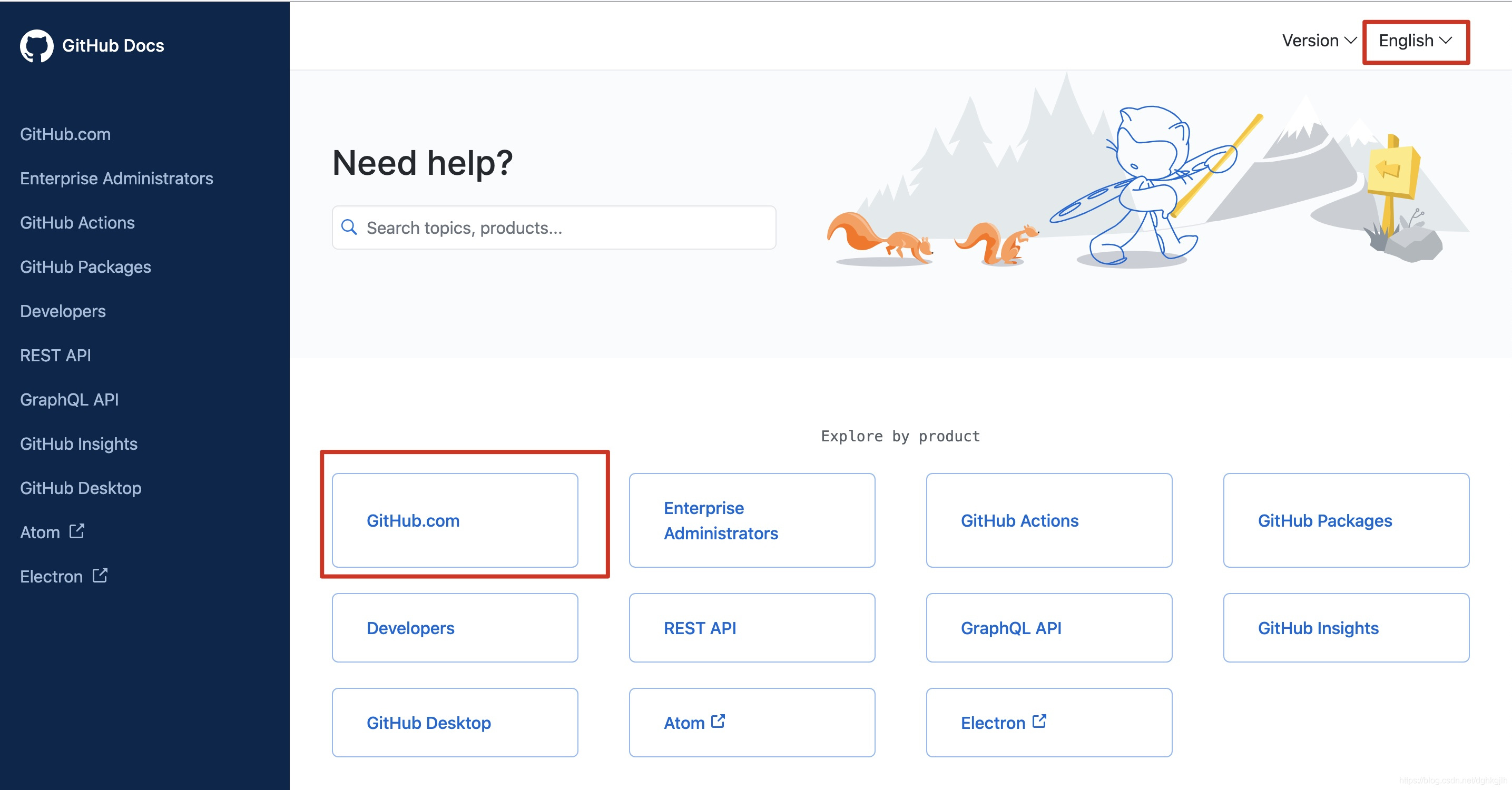
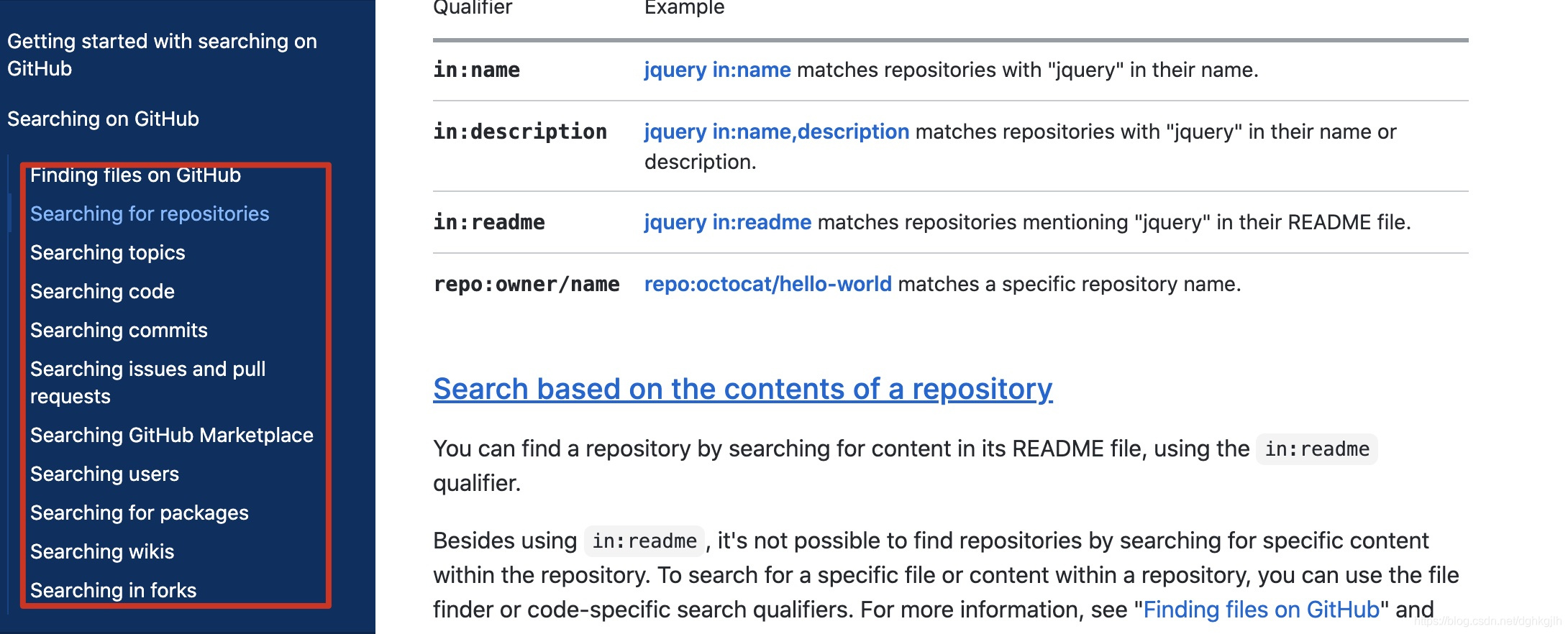
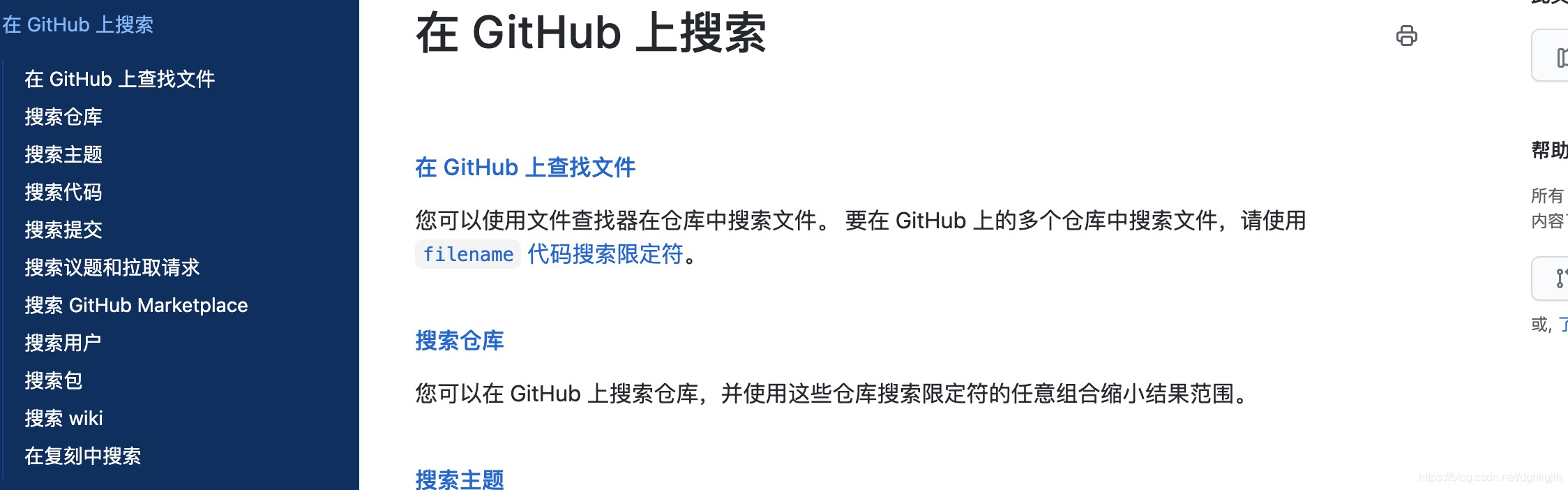
The official documentation explains account registration, repository creation, PR submission and merging, Git identity setup, advanced searches by language, stars over 100, author, or recent pushes, and GitHub emoji. You can switch documentation languages as shown below; the first module generally contains the usage reference.
Closing Thoughts
The complete workflow is now covered.
Notes
Other Operations
- Inspect local Git configuration.
git config --global --list - Configure Git.
git config --global user.name "YOUR_USERNAME"git config --global user.email "YOUR_EMAIL" - Generate an SSH key.
ssh-keygen -t rsa -C "YOUR_EMAIL" - Clean up stale local remote references.
git remote prune origin
Tip
- The best reference is the official Git documentation.