Table of contents
Open Table of contents
Using Solr (Part 5): Solr Command Reference
This article demonstrates the complete Solr workflow entirely from the command line.
Scenario
Start Solr -> create a core -> add fields -> add data -> update data -> query data -> delete data -> delete the core -> stop Solr
Startup
# Approach 1: start directly
solr start

# Approach 2: enter the Solr installation directory and specify the port
cd /usr/local/Cellar/solr/8.5.0/bin
# Use help if you forget what the startup options mean
./solr start -help
# Start local Solr according to the help output
./solr start -h localhost -p 8983
Creating a Core
Create a core named person.
./solr create_core -c personAdding Fields
The person core mainly stores properties of a Person object.
@Getter
@Setter
@ToString
public class Person {

  private long userId;
  private String userName;
  /*
   * User information; a very large text field
   */
  private String userInfo;
  private Integer age;
  private Date created;
}
Request path:
SOLR_IP:port/solr/CORE_NAME/schema
-
Use curl to submit add-field.
-H specifies a header.
-d represents —data-binary here, with JSON data.
curl -X POST -H 'Content-Type:application/json' -d '{
 "add-field":{
    "name":"userId",
    "type":"string",
    "indexed":true,
    "stored":true
 }
}' http://localhost:8983/solr/person/schema
To add multiple fields, use an array as below. If one field contains multiple values, set multiValued to true.
curl -X POST -H 'Content-type:application/json' --data-binary '{
  "add-field":[
     { "name":"shelf",
       "type":"myNewTxtField",
       "stored":true,
       "multiValued":true },
     { "name":"location",
       "type":"myNewTxtField",
       "stored":true }]
}' http://localhost:8983/solr/gettingstarted/schema- Similarly, send a request with Postman.
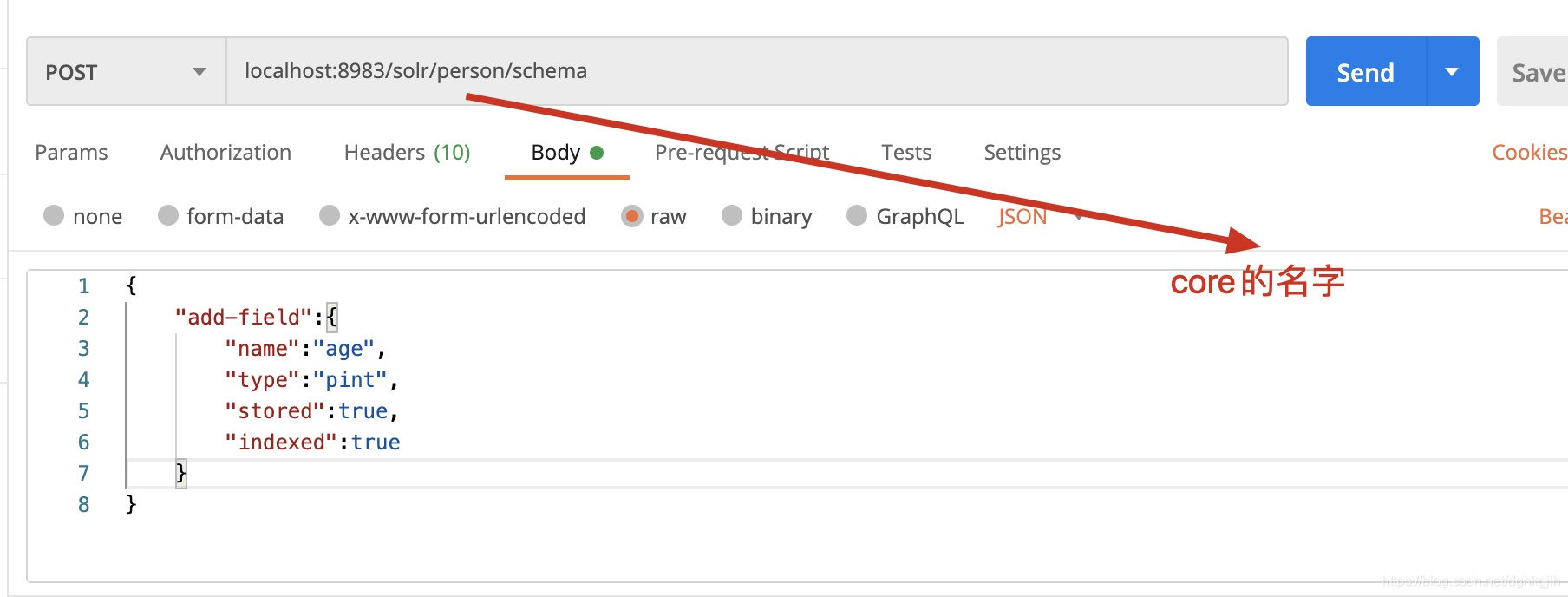
Note: Solr’s default unique key is id. We need our custom useId, but cannot change this through curl here, so manually edit uniqueKey in managed-schema and comment out id.
Adding Data to a Core
SOLR_IP:port/solr/CORE_NAME/update?commit=true
- Add ordinary fields with curl.
curl -X POST -H 'Content-Type:application/json' 'http://localhost:8983/solr/person/update?commit=true' -d '[{"userId":"1284470706704240642","userName":"onePer","age":14,"userInfo":"应用场景:我们在搜索时 比如输入java,一篇文章分为标题、简介、内容等很多字段,输入的关键字需要制定solr中的域进行检索,不可能从一个表中将所有字段进行索引,因为有些字段不需要索引,所以出现copyField域,把多个域的关键词复制到同一个域,多个域时,可以放到一个域中。就不用定义那么多域了。搜索比较方便","created":"2020-07-19 10:57:12"}]'Why is the final URL quoted here but not in addField above? This URL contains parameters and special characters such as = that need protection for the command to send data correctly. Single quotes prevent shell interpretation. Other special URL characters include ? and &; you can look into these further. Also specify the JSON content type. Without it, curl defaults to application/x-www-form-urlencoded. Add -iv to see this. For more on curl, see the official manual, this article, or these examples.
- Add multiValued data with curl, using property:[multiple values here].
curl -X POST -H 'Content-Type:application/json' -d '[{"name":"名字","content":["this is first","this is second","this is third"]}]' 'http://localhost:8983/solr/article/update?commit=true'- Use Postman.
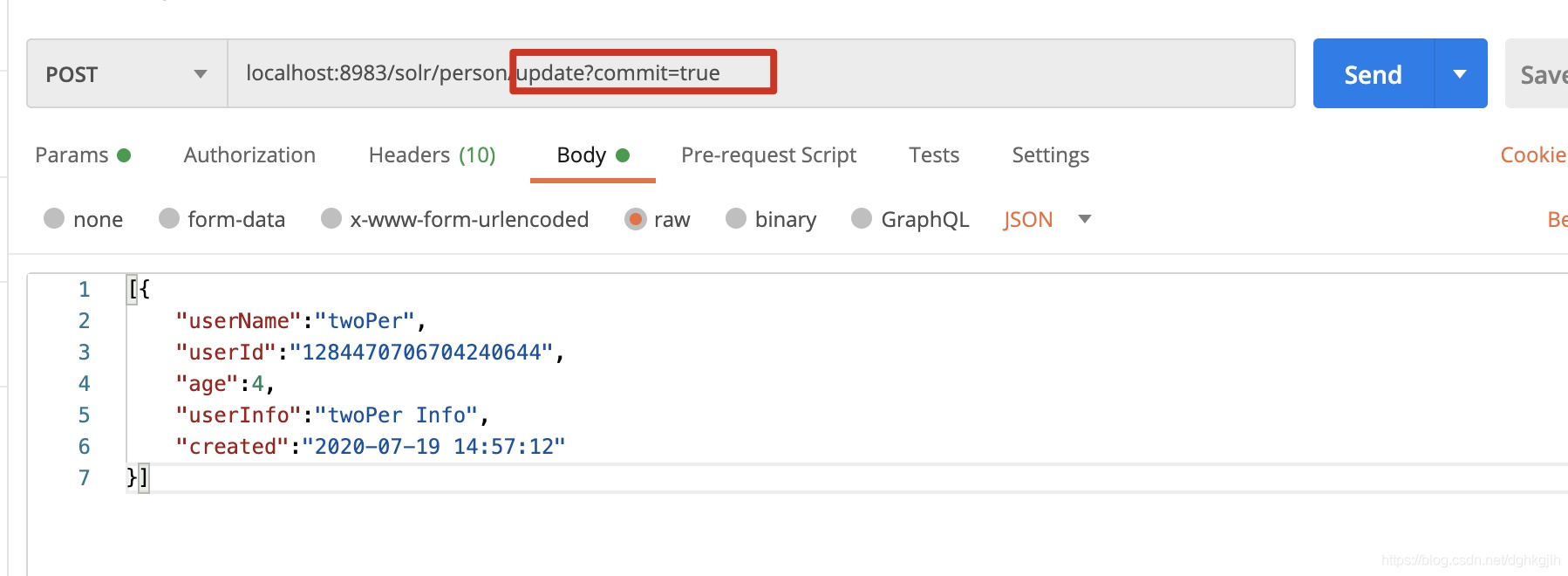
Note: whether using curl or Postman, the JSON is submitted as an array, allowing batch inserts.
Updating Data
Using curl:
curl -X POST -H 'Content-Type' 'http://localhost:8983/solr/person/update?commit=true' -d '[{"userId":"1284470706704240648","userName":"twoPer modify","age":78,"created":"2009-08-23 11:12:25"}]'Querying Data
Ordinary Queries
Using curl GET:
curl -X GET 'http://localhost:8983/solr/person/query?q=userName:four*'Pagination
Append start and rows to the URL, for example start=0&rows=20.
curl -X GET 'http://localhost:8983/solr/person/query?q=userName:four*&start=0&rows=20'Use curl POST to query age less than or equal to 13:
Numeric Range Queries
- * TO 13 means no lower bound through 13.
- [] includes the endpoint.
- {} excludes 13.
curl -X POST -H 'Content-Type:application/json' 'http://localhost:8983/solr/person/query' -d '{"query":"age: [* TO 13]"}'For pagination, append start and rows to the curl URL.
Request directly in a browser to query age greater than or equal to 13:

Conditional Queries
A bool query returns only records whose userName is sixPer.
url -X POST -H 'Content-Type:application/json' 'http://localhost:8983/solr/person/query' -d '{"query":{"bool":{"must":["userName:sixPer"]}}}'Multiple-Value Queries
For example, name:(haha 我的) uses parentheses and separates the values with spaces.
curl -H 'ContentType:application/json' 'http://localhost:8983/solr/cutomData/query' -d '{"query":"name:(我的 haha)"}'Phrase Queries
Enclose the phrase in double quotes "". For example, when searching content for the Chinese phrase “老歌” (old songs), without double quotes Solr treats the characters 老 and 歌 independently and returns content containing both. That is not the intended result, so use a phrase query. See the official phrase-search tutorial. Solr also provides enhanced word-based searching. Take a look at edismax.
curl -H 'ContentType:application/json' "http://localhost:8983/solr/cutomData/query" -d '{"query":"content":"老歌"}'Spatial Queries
Solr supports searches involving locations and geographic information. I have not studied this much because my regular work does not involve it. Documentation linked in the original article
A Special Case: Filtering HTML Tags
The official documentation provides HTML tag filtering configuration.
In everyday use, a Solr document may contain a large amount of plain or rich text. Rich text can include many HTML tags, which we may want to exclude when searching its content.
For example, search for the letter p but exclude the <p> tag. Without configuration, p inside <p> is also matched. Solr provides a filter for this.
Configure the fieldType corresponding to the field’s type. For example, if the field is: <filed name=“content” type=“text_general” indexed=“true”> Find <fieldType name=“text_general”/> in managed-schema and add a charFilter under <analyzer>.
<charFilter class="solr.HTMLStripCharFilterFactory"/>Place it before tokenizer, as shown:
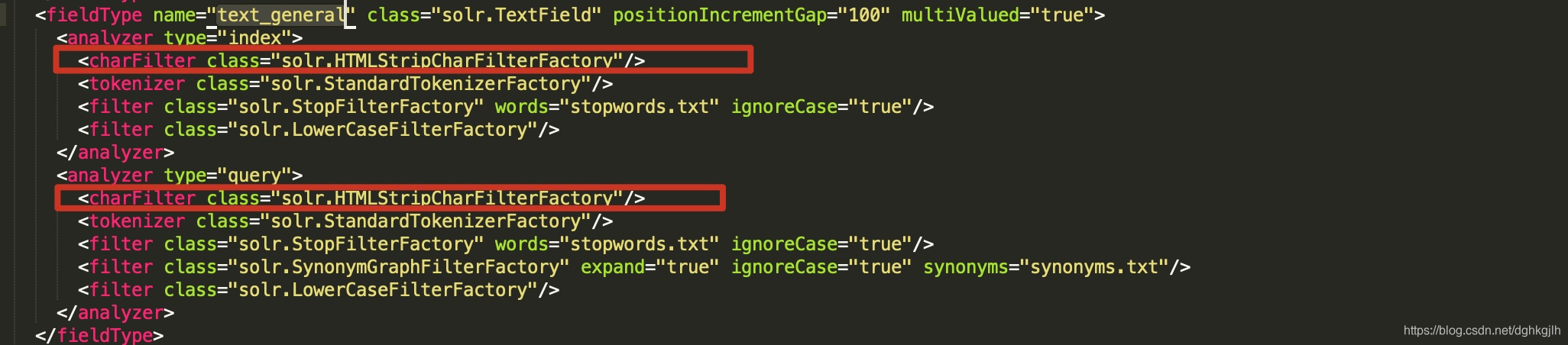 Here it is configured for both indexing and querying fields whose fieldType is text_general.
Verification:
Original data:
Here it is configured for both indexing and querying fields whose fieldType is text_general.
Verification:
Original data:
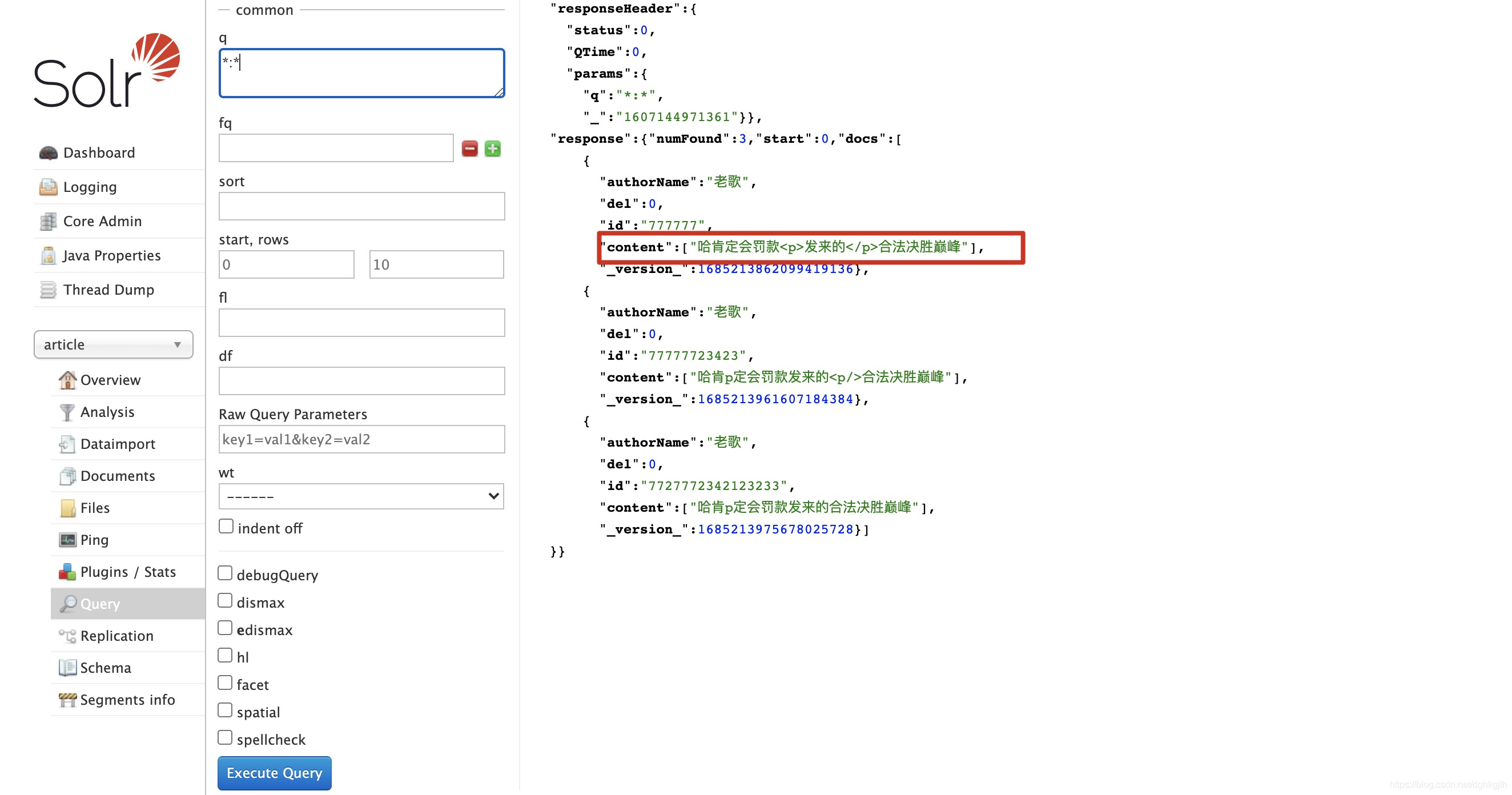 Query content for p. With correct configuration, the highlighted record will not match because it contains p only in HTML tags, not in the other content.
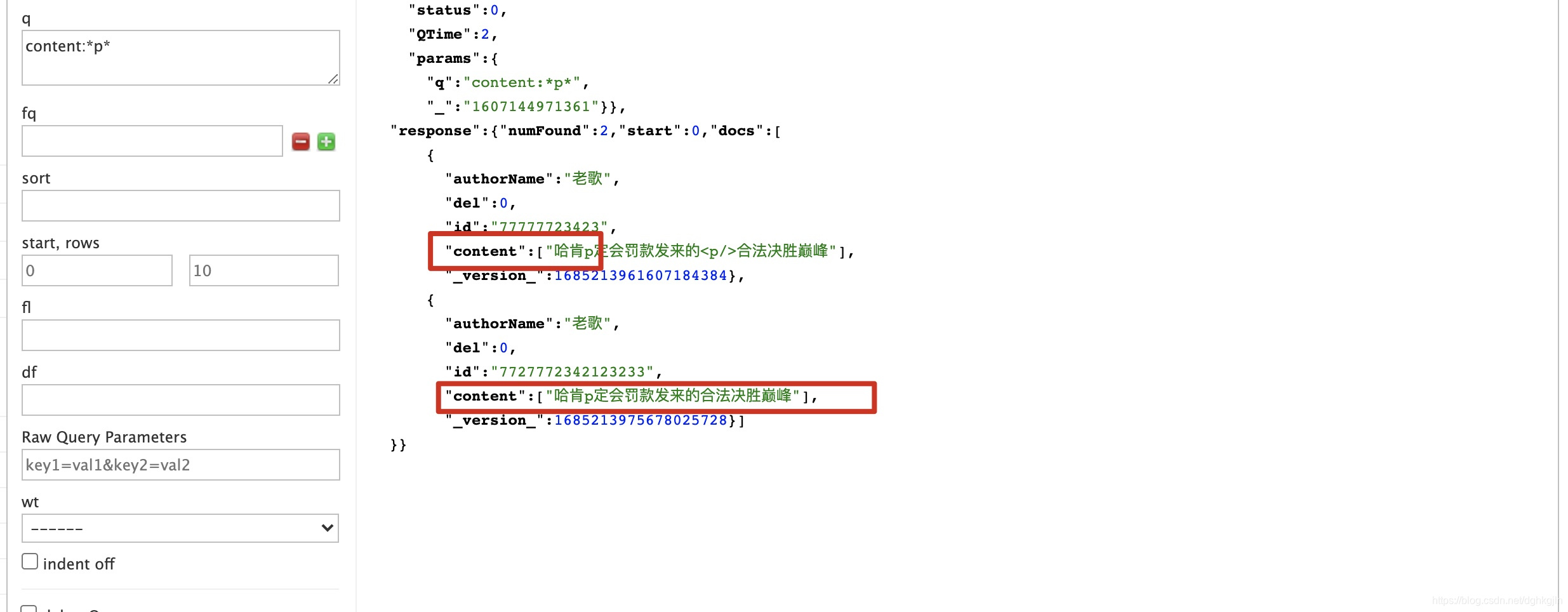 It is indeed absent from the results, confirming the configuration.
Deleting Data
-
Delete by unique key.
curl -X POST -H 'Content-Type:application/json' 'http://localhost:8983/solr/person/update?commit=true' -d '{"delete":"1284470706704240649"}' -
Delete by condition: delete records where age is greater than 13.
curl -X POST -H 'Content-Type:application/json' 'http://localhost:8983/solr/person/update?commit=true' -d '{"delete":{"query":"age:{13 TO *]"}}'
Deleting a Core
./solr delete -c personOr:
curl 'http://localhost:8983/solr/admin/cores?action=UNLOAD&core=article&deleteIndex=true&deleteDataDir=true&deleteInstanceDir=true'Stopping and Restarting Solr
./solr stop
# Restart Solr
./solr restart
Summary
Over 95% of the operations above can be done from the command line. Of course, the most important part of Solr is still its query syntax.
For more detailed usage, see the other four Solr articles. Start here
Appendix
-
What is Solr’s default port? 8983.
-
What does CopyField do? Definition
Answer: when multiple fields are configured but the user-facing search spans them, use CopyField. From the user’s perspective, one search box can find content from different fields regardless of what they enter.
For example, a search box accepts either a user ID or a name, but we do not know which the user entered. Use copyField to copy id and name into one new field.
Configuration:
<field name="userName",type="string",indexed="true",stored="true"/> <!-- userId is the unique key, so required=true is needed --> <field name="userId",type="string",indexed="true",stored="true",rquired="true"/> <!-- multiValued=true must be set --> <field name="combaSearch" type="string",stored="true",indexed="true",multiValued="true"/> <!-- Configure source fields for combaSearch --> <copyField source="userName",dest="combaSearch"/> <copyField source="userId",dest="combaSearch"/> -
What is the relationship between fieldType and field in managed-schema?
Answer: field is a field in a Solr core, while fieldType specifies its type. Custom fieldTypes are supported:
. A field is invalid if its type has no corresponding fieldType. -
What does dynamicField do? Definition
If you discover that a field was not explicitly defined in the core, but its name matches a dynamicField rule, Solr can still query it without a separate definition. I have not found this particularly useful in practice.