Table of contents
Open Table of contents
Article body
For a detailed introduction to data importing, see the official DataImport documentation.
- Create db-data-config.xml.
Enter the customData core directory and create db-data-config.xml there.
mkdir -p db/conftouch db-data-config.xmlFile contents:
-
Configure the data source. We use MySQL with type JdbcDataSource. Solr also provides ContentStreamDataSource, FieldReaderDataSource, FileDataSource, and URLDataSource. See DataSources under DataImport for details.
-
Under document, configure the entities to import into Solr. A document can contain multiple entities.
-
Entity attributes:
name: entity name
pk: table primary key
query: query used for a full import
deltaQuery: query returning IDs for an incremental import. Here, an update timestamp later than the last import time identifies changed records.
 deletedQuery: retrieves deleted IDs

 deltaImportQuery: query for an incremental import. IDs come from the two queries above and represent data changed between the previous and current Solr imports.
Note: to update incrementally by a field other than id, replace id in the SELECT clauses of deletedQuery and deltaQuery, and use ${dataimporter.delta.your_column_name} in deltaImportQuery.
field column: database column name; name: Solr field name, as configured in managed-schema in Part 1.<?xml version="1.0" encoding="UTF-8"?>
<dataConfig>
<dataSource
type="JdbcDataSource"
driver="com.mysql.jdbc.Driver"
url="jdbc:mysql://localhost:3306/dhb"
user="root"
password="12345"
batchSize="-1"/>
<document>
<entity name="user" pk="id"
query="SELECT id,name,age FROM user WHERE del = 0"
deltaQuery="SELECT id FROM user WHERE updated > '${dataimporter.last_index_time}' "
deletedPkQuery="SELECT id FROM user WHERE del = 1"
deltaImportQuery="SELECT id,name,age FROM user WHERE id = ${dataimporter.delta.id} ">
<field column="id" name="userId"/>
<field column="name" name="name"/>
<field column="age" name="age"/>
</entity>
</document>
</dataConfig>The JDBC configuration specifies the database URL, username, and password, with batchSize=“-1” at the end. This retrieves the result set one row at a time. See the documentation.
-
Configure DataImportHandler in solrconfig.xml under customData/conf.
-
Add DataImportHandler.
The
<!-- DataImportHandler configuration for database imports -->
    <requestHandler name="/dataimport" class="org.apache.solr.handler.dataimport.DataImportHandler">
      <lst name="defaults">
        <str name="config">/usr/local/var/lib/solr/customData/db/conf/db-data-config.xml</str>
      </lst>
</requestHandler>- Configure JAR paths.
Importing from MySQL requires its JDBC driver JAR and the DataImportHandler package. Add these to solrconfig.xml as well:
    <lib dir="${solr.install.dir:../../../..}/dist/" regex="solr-dataimporthandler-.*\.jar"/>
    <lib dir="${solr.install.dir:../../../..}/dist/" regex="mysql-connector-java-.*\.jar"/>
Put the MySQL JAR in dist under the Solr installation. With multiple cores, this avoids storing a shared JAR separately for each core. The same applies to the DataImportHandler JAR.
Note: ${solr.install.dir:} is the Solr installation directory. If you do not know it, find it at the bottom left of console -> Dashboard, along with log paths, GC log paths, and other settings.
-
Full and Incremental Imports
-
Restart Solr, then open console -> customData -> Dataimport.
-
command offers full-import and delta-import. Choose full-import the first time and decide whether to select clean as needed.
-
Select the entity to import under Entity.
-
Click Execute.
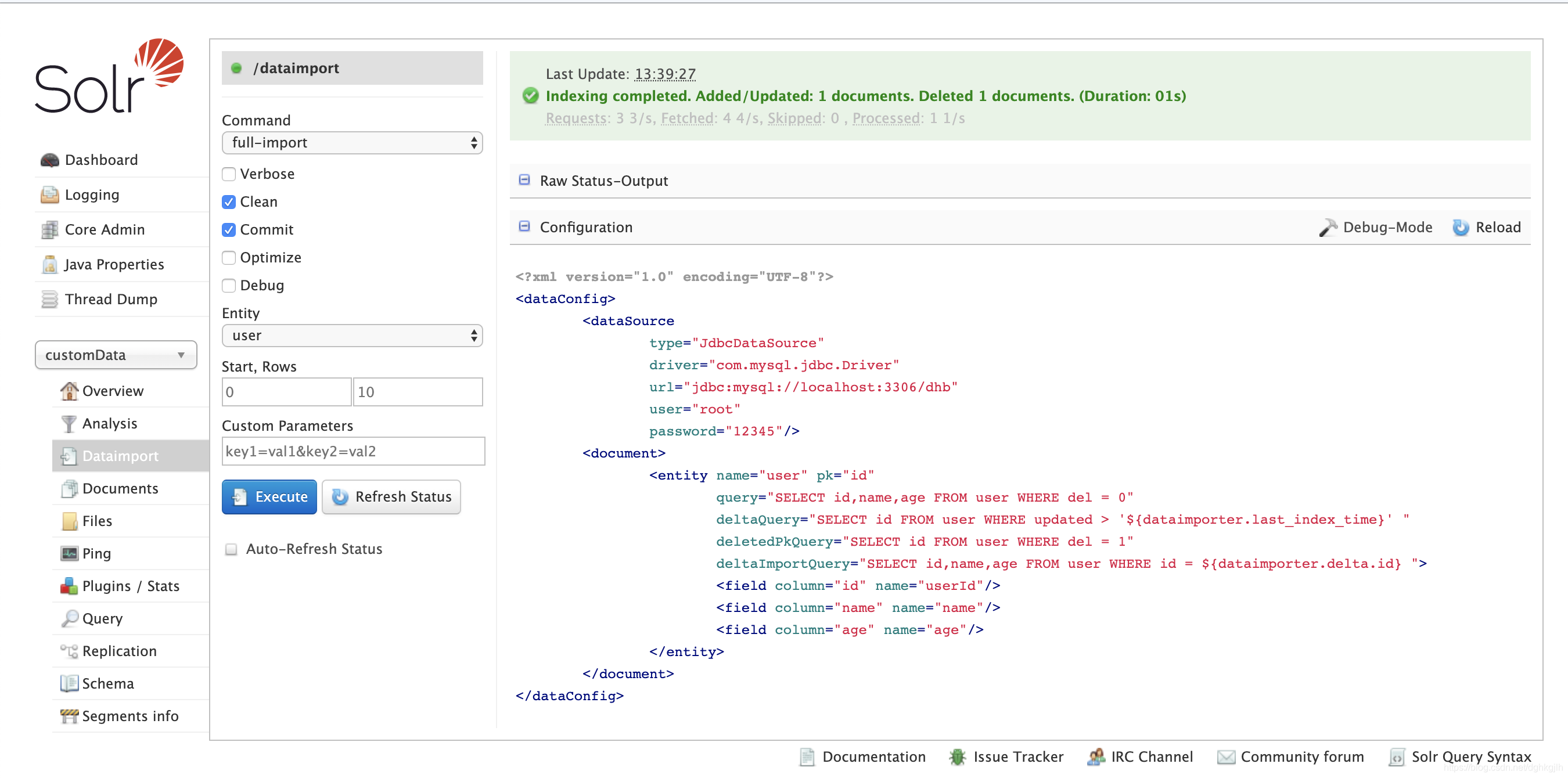
- Run a Query to check whether the import succeeded.
Note: if no data appears, inspect the Logging panel for errors. If there are any, open solr.log in the log directory to diagnose them.
-
Modify or delete data, choose delta-import -> Execute, then Query again to check the incremental import.
-
Scheduled Incremental Imports
In production, incremental imports may need to run periodically.
-
Clicking in the Solr console manually is not practical; it wastes time and effort.
-
Depending on the situation, you could add a scheduled job to the application code.
I found no scheduled-job configuration in the Solr documentation. Online references mention an official scheduler JAR: download. It has bugs, and many patched versions exist online; search for them if needed.
Why is that scheduler JAR no longer maintained? The official documentation explains:
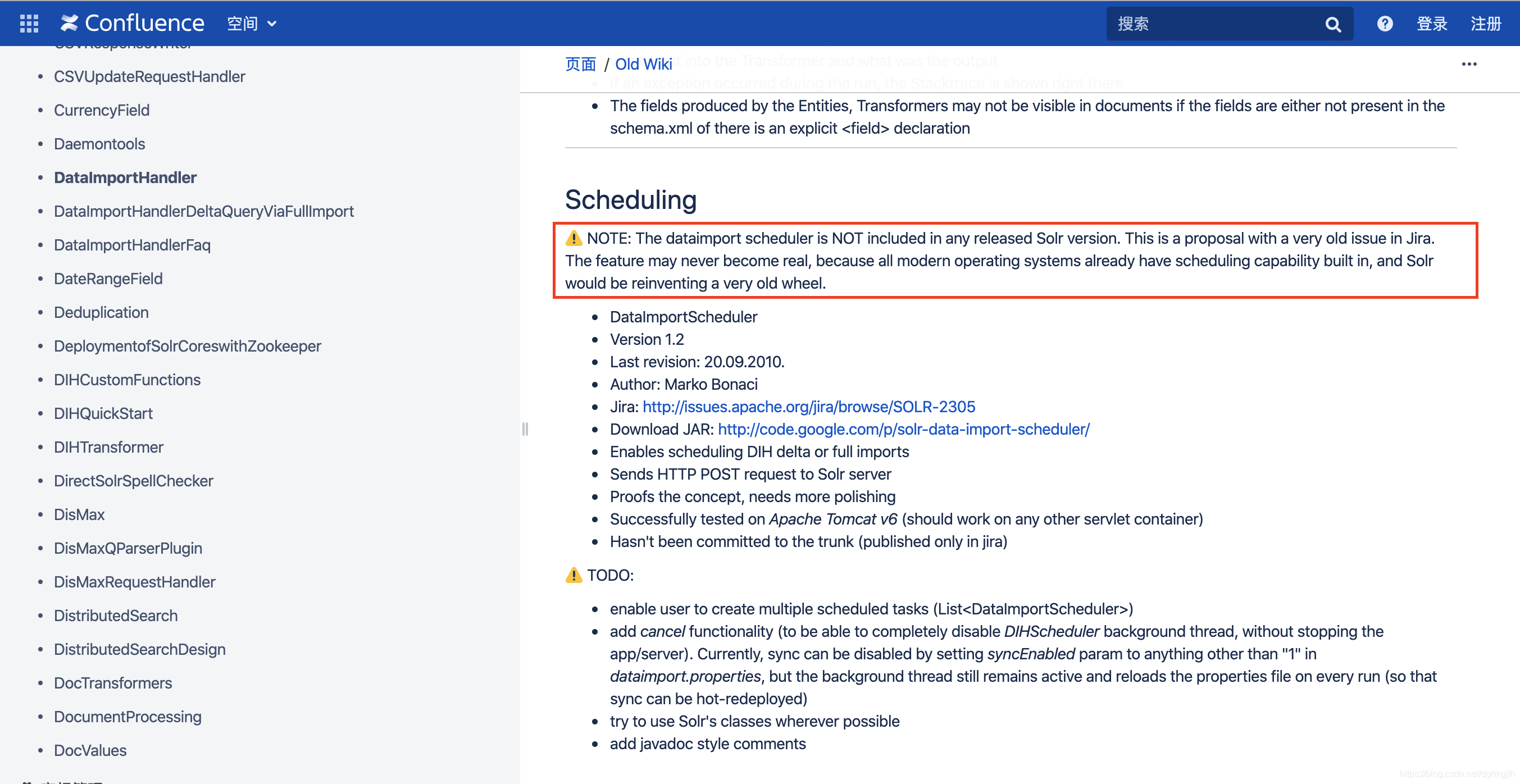
Solr explains that modern operating systems already support scheduled jobs, so it will not reinvent that functionality. The scheduler JAR was only simple early support. For more, see the Old Wiki.
- Since the operating system supports scheduling, create the job there with crontab:
crontab -u user -eThis opens vi. Enter the command to run an incremental import of customData every minute:
*/1 * * * * curl http://localhost:8983/solr/customData/dataimport?command=delta-import&clean=false&commit=trueNote:
For crontab usage, see the Runoob tutorial.
To remove scheduled jobs:
crontab -u user -r-
Modify data, wait a minute, and Query to check whether Solr updated it.
-
One problem with this approach is that scheduled queries waste resources when the database has not changed. Could we replace Solr periodically pulling from the database with the database pushing updates to Solr? CDC is used for this in the industry. For a detailed example, see Synchronizing Oracle Data to PostgreSQL with Kafka Connect and Debezium CDC. How can CDC be implemented for Solr? I have not investigated this in depth; I will leave it to those with time and energy. If you find a solution, please share it in the comments.
-
Issues with Database tinyint Fields During Import
When a database field is tinyint with length 1, DataImport automatically converts it to the Boolean strings true and false. If we defined the Solr field as pint, this causes an error, as shown below.
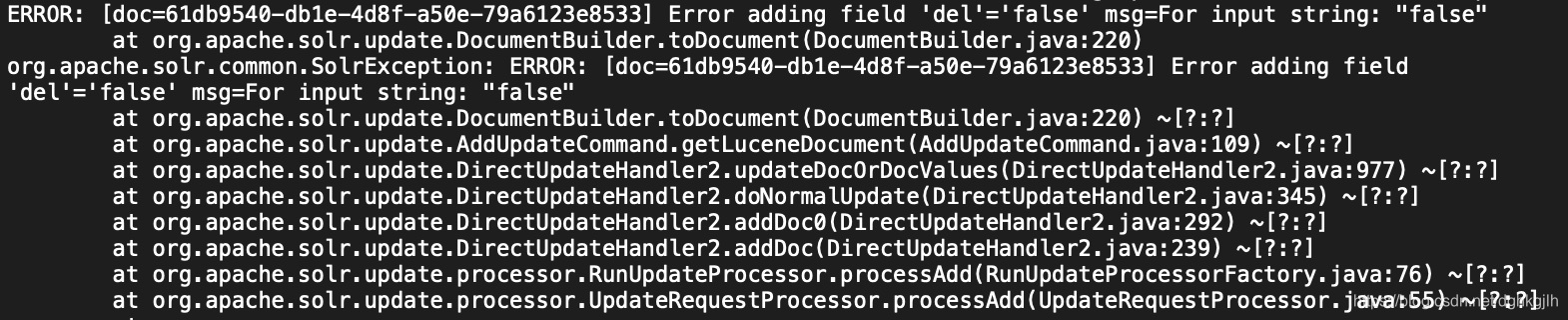
The tinyint has become the string false. To prevent conversion to true or false, modify the query in data-config.xml for the relevant tinyint field, as shown below.
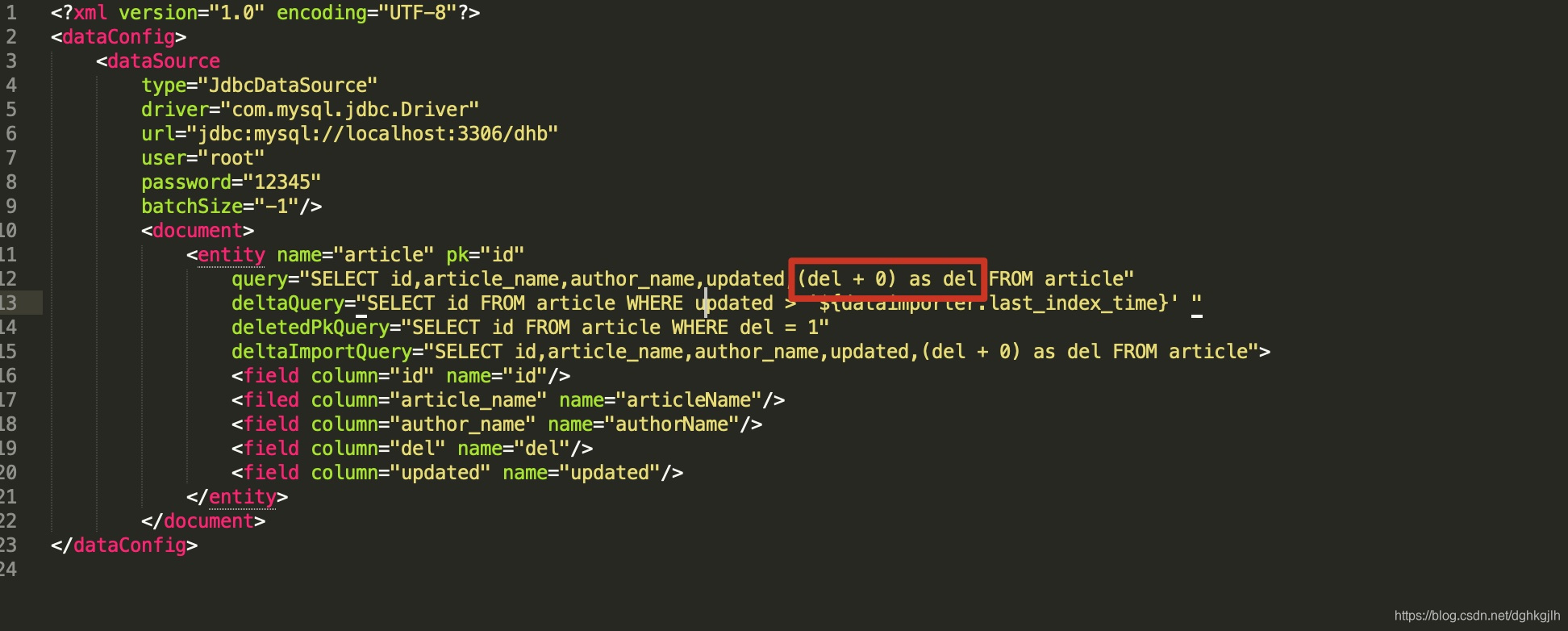
This is essentially an implicit conversion.
Alternatively, keep the query and change the field type to boolean.
- Importing multiValued Fields
A multiValued field contains multiple values. How does DataImportHandler recognize them? Configure the appropriate transformer on the entity and rules on the field.
Use this configuration:
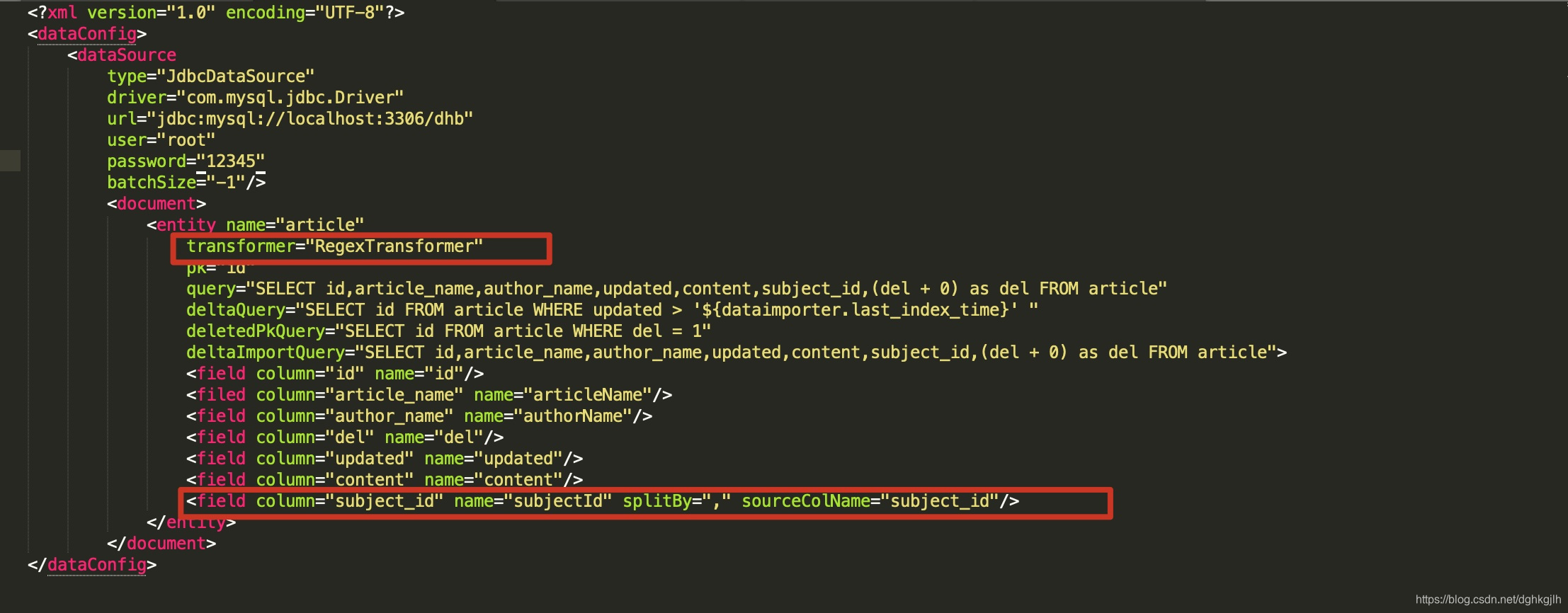
The regex Transformer splits comma-separated subject_id values in the result set into the parts of a multiValued field, completing its import.
For more Transformers, see the official documentation.
- Final Notes on DataImportHandler (DIH)
 1. According to the documentation, DIH will be removed in Solr 9, and importing will be supported through third-party plugins.

 2. DIH has four main parts: DataSource reads raw data; Entity maps raw data to Solr documents; Processor converts entities and adds them to Solr; Transformer converts selected fields. Each has different types. Configure them according to your scenario using the documentation.